Configuration Overview
All LightVela configuration is centralized in the "My Hermes" console and consists of three configuration buttons:
- Models
- Channels
- Skills
This page introduces the overall console structure and the function of each button. For detailed operations, see the corresponding subpages.
This page covers
- How to enter the console
- Hermes instance information button
- Functions and entry points of the three configuration buttons
- Success state after configuration
- Common operations such as switching models, connecting multiple channels, and recreating Hermes
---
Enter the console
After signing in, click "My Hermes" in the upper-right corner to enter the console. The top of the page provides a "Back to Home" button.
---
Hermes instance information
The top of the console contains Hermes tabs. Each tab represents one Hermes instance (the Launch plan supports only 1). The "+ Create" button on the right becomes unavailable after the instance limit is reached.
After selecting a Hermes, its basic information is shown below:
- Avatar
- Name (click the name or pencil icon to edit, then press Enter to save)
- Status (● Running / ● Unknown)
- Creation time
- Delete button (trash icon on the right)
> ⚠️ Deletion is irreversible > > Clicking the trash icon permanently deletes the Hermes instance, including all conversation memory, connected channels, and installed skills. If the Launch plan quota still allows it, you can create a new Hermes afterward.
---
Three configuration buttons
The three buttons are arranged from left to right. The recommended configuration order is 1 → 2 → 3.
1. Channels
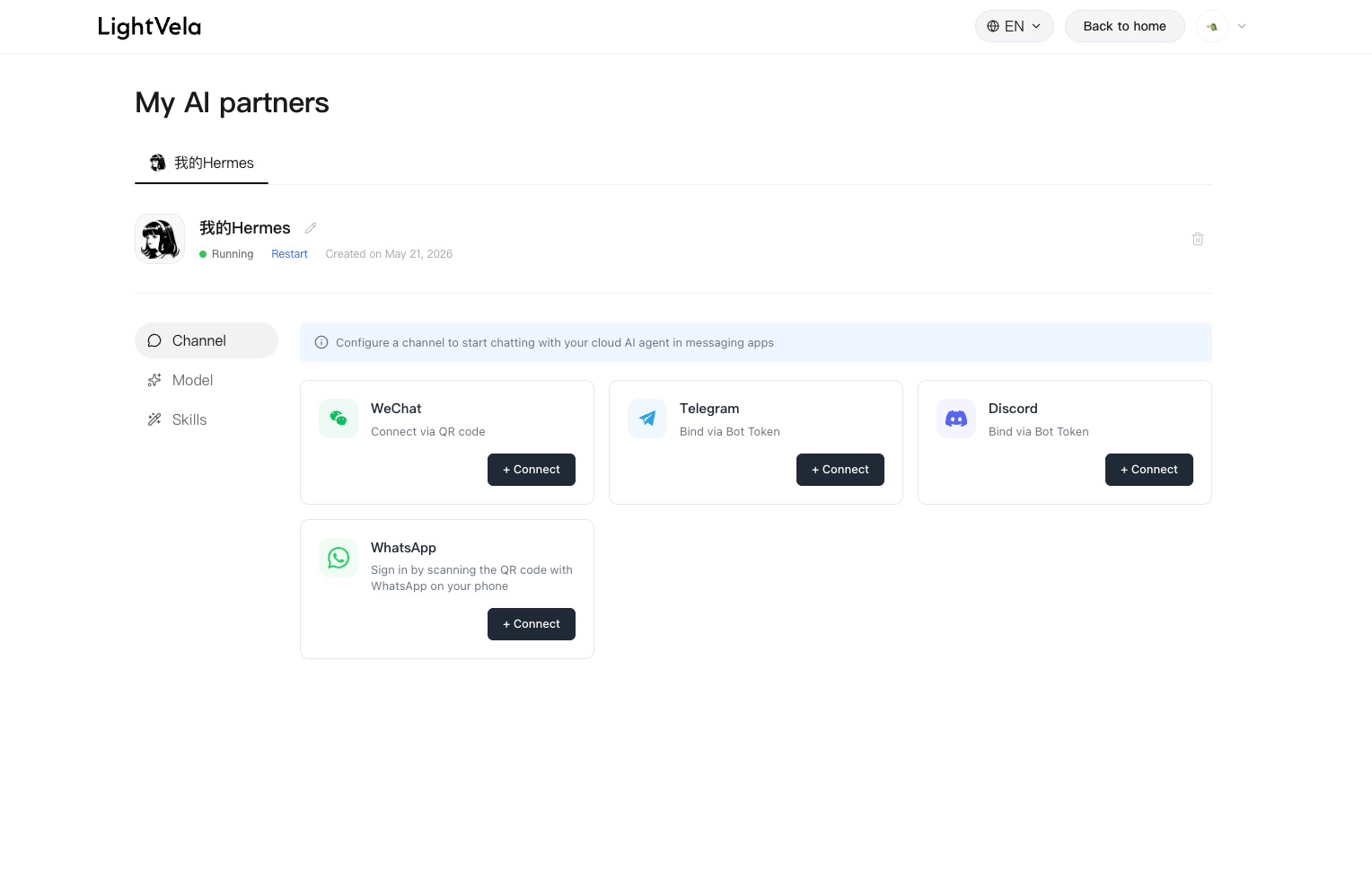
Purpose: Connect Hermes to messaging platforms and provide conversation entry points for users.
Access methods by channel:
| Channel | Access method | Requirement |
|---|---|---|
| QR-code authorization | A phone with WeChat installed | |
| Telegram | Bot Token access | Create a Telegram Bot through BotFather and obtain a Bot Token |
| WhatsApp Business API access | Meta developer account, WhatsApp Business Account, and basic Cloud API setup | |
| Discord | Bot Token access | Create an Application in Discord Developer Portal, add a Bot, and invite it to a server |
| AppID / AppSecret access | A QQ account; create a bot on the QQ Open Platform and obtain AppID / AppSecret | |
| WeCom | QR-code authorization | A phone with WeCom installed |
| Lark | QR-code authorization | A phone with Lark installed (or desktop Lark already signed in) |
Button provides: Channel dropdown, "Authorize Access" button, selected channel introduction and "View Details" link, and "Connected channels" list.
For details, see Configure Channel - WeChat / Telegram / WhatsApp / Discord / QQ / WeCom / Lark.
---
2. Models
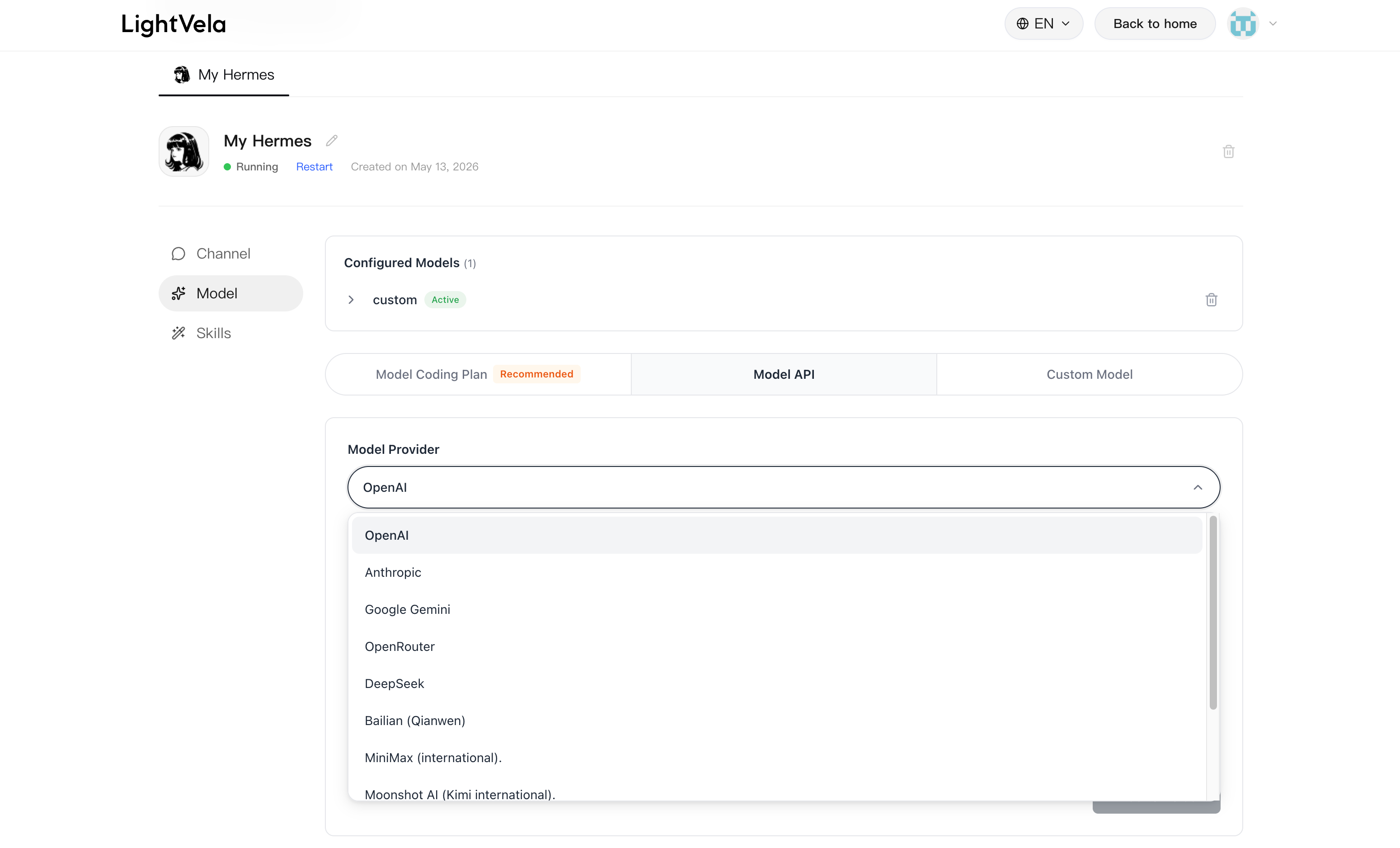
Purpose: Configure a large language model for Hermes. The Launch plan includes 100 trial credits, so you can skip this step at first and configure a model after the credits run out.
Button provides: Source dropdown (Model Coding Plan / Model API / Custom Model), model dropdown, API Key input, provider introduction, link to obtain API Key, and "Current model" list.
> ⚠️ Only one model is active > > Currently, each Hermes can have only one active model configuration. A new "Add as default" action overwrites the existing configuration.
For details, see Configure Models.
---
3. Skills
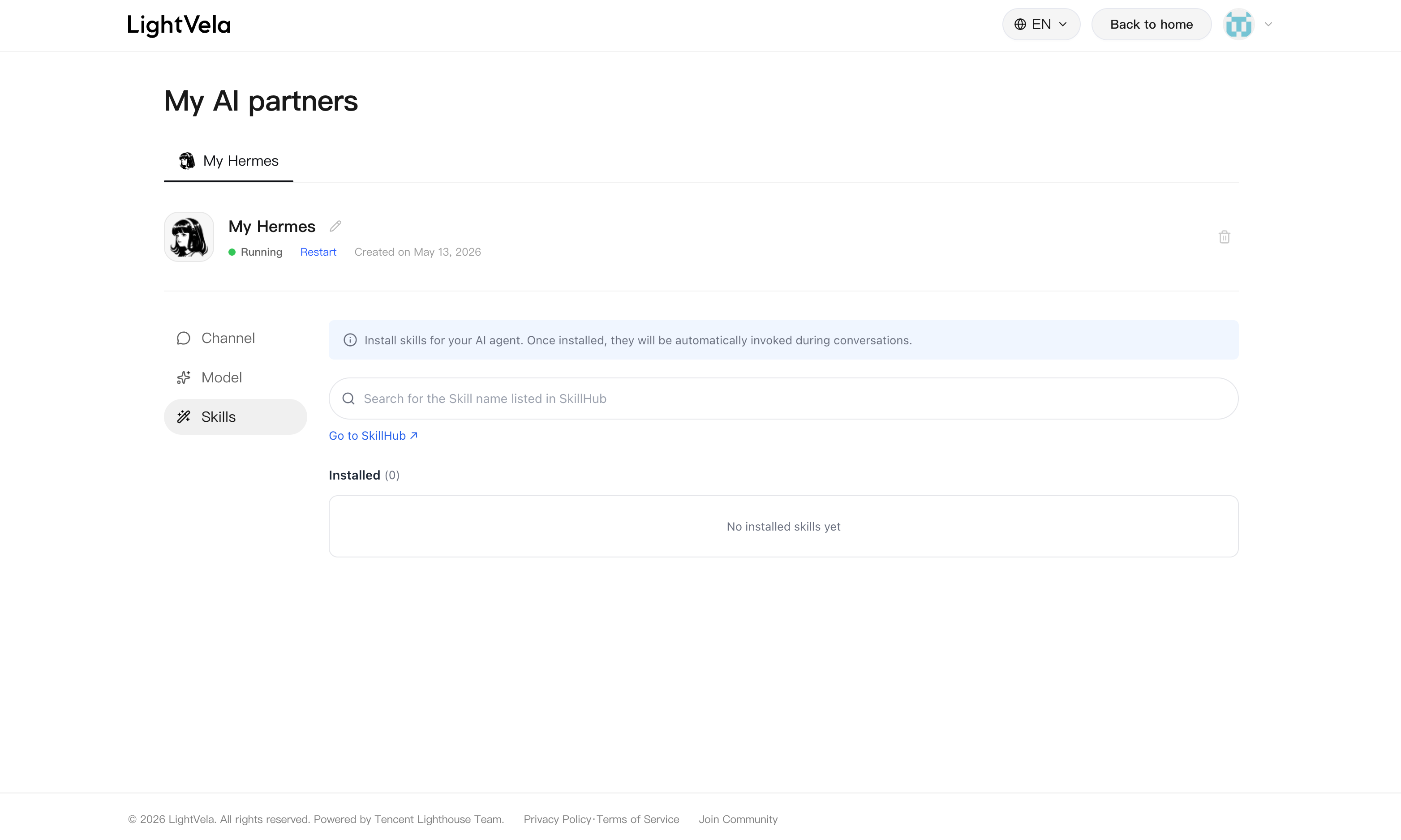
Purpose: Extend Hermes capabilities, such as organizing to-dos, generating daily reports, and searching the web.
Button provides: Skill name search box, "Install Skill" button, "Go to SkillHub" link, and "Installed skills" list. Before installation, confirm the exact skill name in SkillHub.
> ⚠️ Install only trusted skills > > Skills have permission to call Hermes capabilities at runtime. Only install skills from trusted sources.
For details, see Configure Skills.
---
Success state after configuration
After configuration is complete, the console should show the following state:
- The "Connected channels" list has at least one record (such as "WeChat")
- "Current model" is optional; no configuration is required if you use Launch trial credits
- "Installed skills" can be configured as needed and may be empty
Once "Connected channels" has at least one record, you can find the bot in the corresponding messaging platform and start a conversation. Hermes will generate replies using the default model or Launch trial credits.
---
Common operations
Switch models
In the "Model" button, choose the source and model again, enter the API Key, and click "Add as default". The new configuration overwrites the previous one. Switching models does not affect conversation memory.
Connect multiple channels
In the "Channel" button, switch dropdown options one by one and click "Authorize Access". Multiple channels point to the same Hermes and share memory and Agent behavior.
Recreate Hermes
Click the trash icon on the right side of the basic information button to delete the current Hermes, then click "+ Create Hermes" to create it again. All conversation memory will be lost.
---
Next steps
Detailed configuration for each module:
- Configure Models — Model sources, API Key acquisition, and selection guidance
- Configure Skills — SkillHub usage and skill installation
Related references: