Configure Skills
Skills are additional capability packages callable by Hermes. They extend concrete task handling beyond basic conversation, such as automatically organizing to-dos, generating daily reports, browsing web pages, searching news, generating images, and more.
All skills come from ClawHub, the skill marketplace shared by OpenClaw and Hermes.
This page covers
- Introduction to ClawHub
- Relationship between Hermes and skills
- Two installation methods: console installation and conversation installation
- Skill usage examples
- Deleting installed skills
- FAQ
> 💡 Skills are optional > > Hermes does not install any skills by default. Hermes can still chat normally without installed skills. Skills are only used to extend specific task capabilities. We recommend installing them as needed after you discover capability boundaries during use.
---
Positioning of skills
If Hermes combined with a large model gives users an intelligent AI assistant, skills are its "hands and feet". Skills can further extend the capability boundary of an already deployed Hermes.
You can think of skills as "applications" for Hermes:
- Basic conversation capability = operating system
- Skills = applications installed on demand
Each skill focuses on a single task, for example:
- Browsing web pages and querying information with a browser
- Automatically organizing daily to-dos
- Sending scheduled news briefings
- Generating images from descriptions
- Querying real-time stock and fund information
- Organizing chat records into structured notes
Hermes automatically determines whether to call the corresponding skill based on conversation context. Users do not need to specify it.
---
ClawHub
ClawHub is the skill marketplace launched by OpenClaw:
Features:
- Browse listed tools / skills
- View tool descriptions, usage methods, and related information
- Record the tool name and install or call it by name in the Hermes / OpenClaw conversation environment
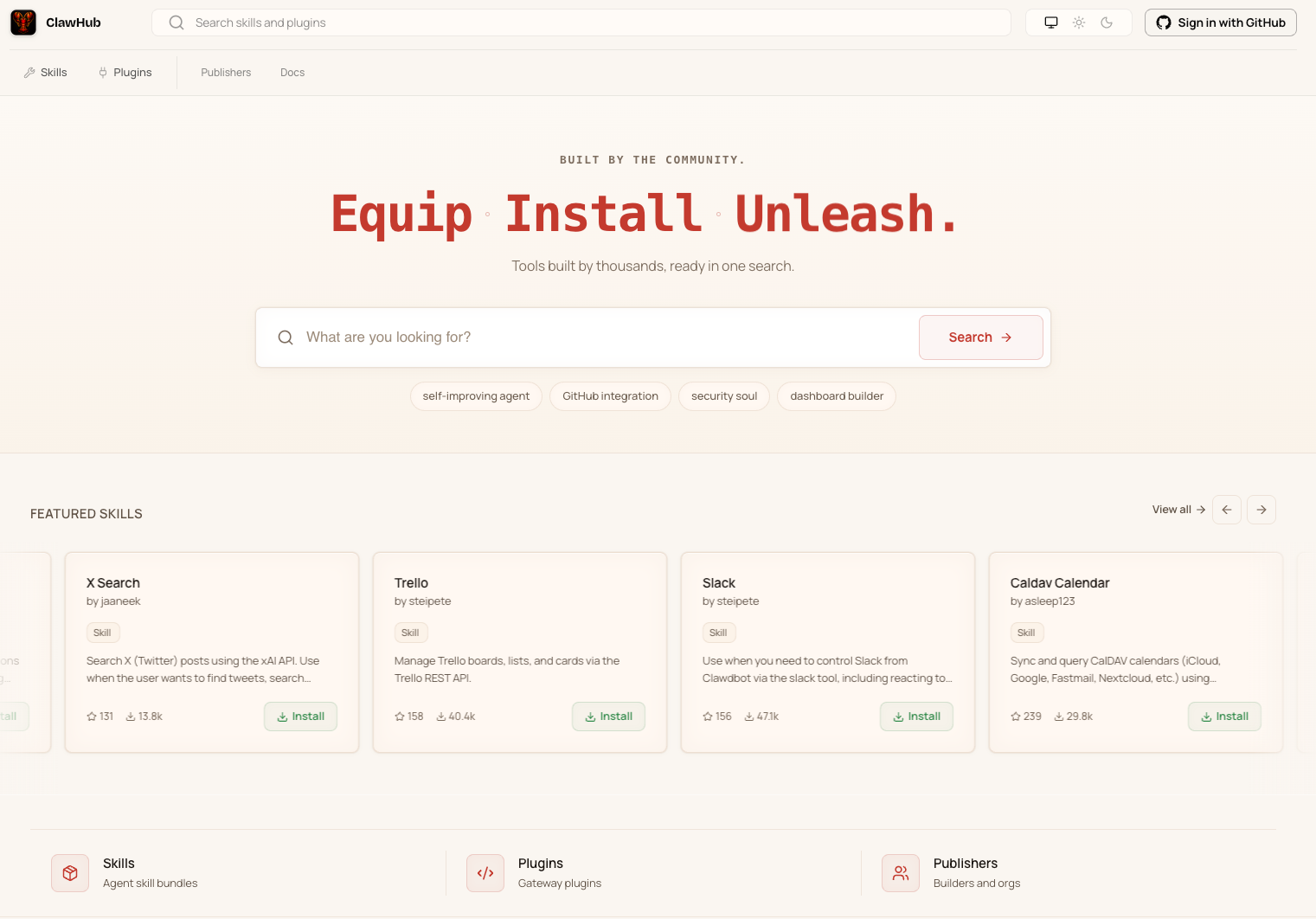
> 💡 Browse in ClawHub first, then install or use in LightVela > > LightVela installs skills by name. You need to confirm the exact target skill name in ClawHub first.
---
Method 1: Install through the console panel (coming soon)
The LightVela console provides a visual skill configuration entry in the "Skills" button. You can enter the skill name found in ClawHub and install it quickly.
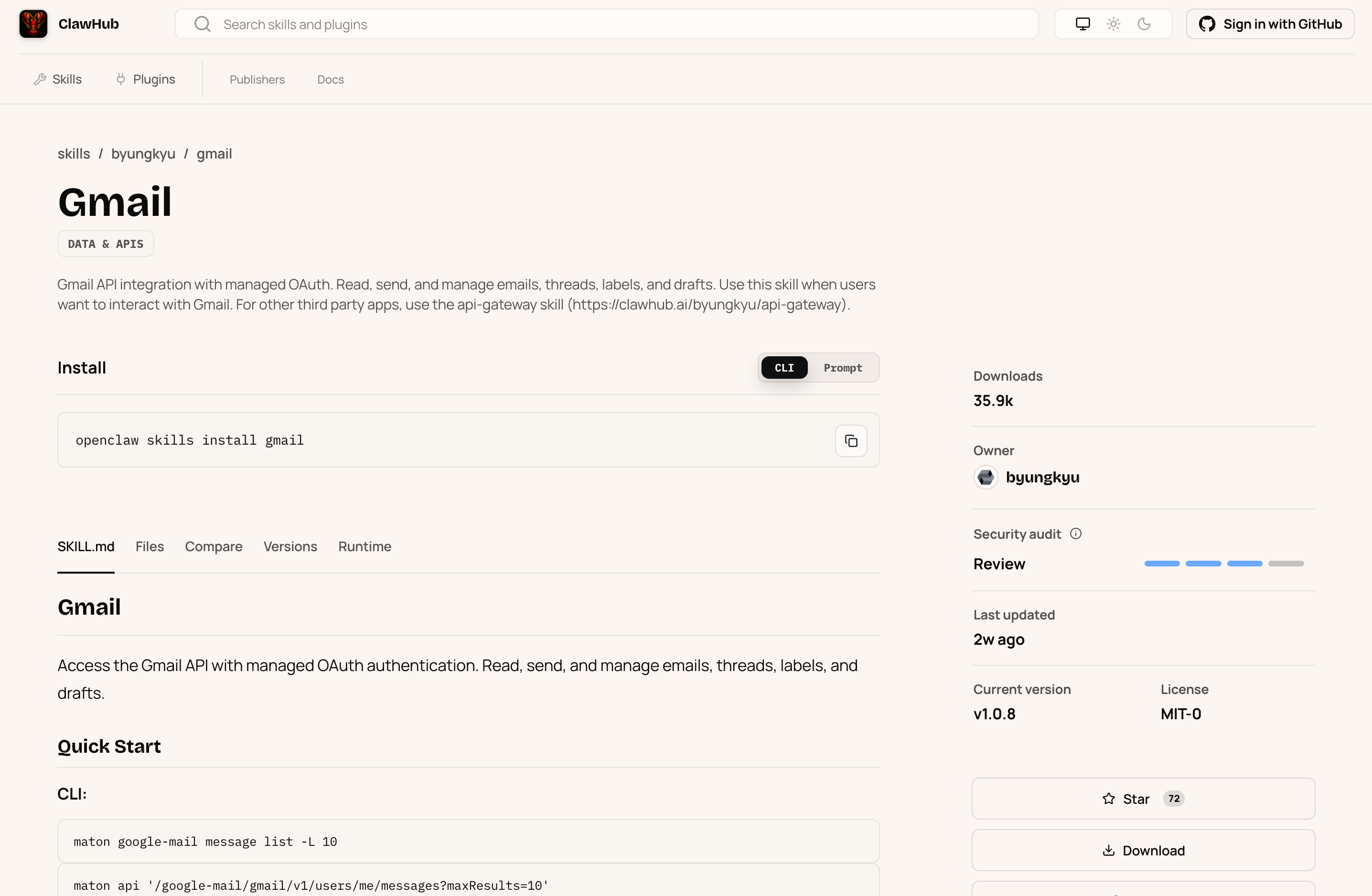
1. Confirm the target skill in ClawHub
Visit https://clawhub.ai/ to browse or search for the skill you need.
Using an email scenario as an example, find the gmail skill. It lets Hermes receive, send, and query emails. Record the skill name shown on the skill details page (in this case, gmail) and use it later to complete installation.
2. Enter the LightVela console
Sign in to LightVela, click "My AI Partners" in the upper-right corner to enter the console, and find the "Skills" button.
3. Search and install
Enter the recorded skill name in the search box (such as gmail) and click the Install Skill button.
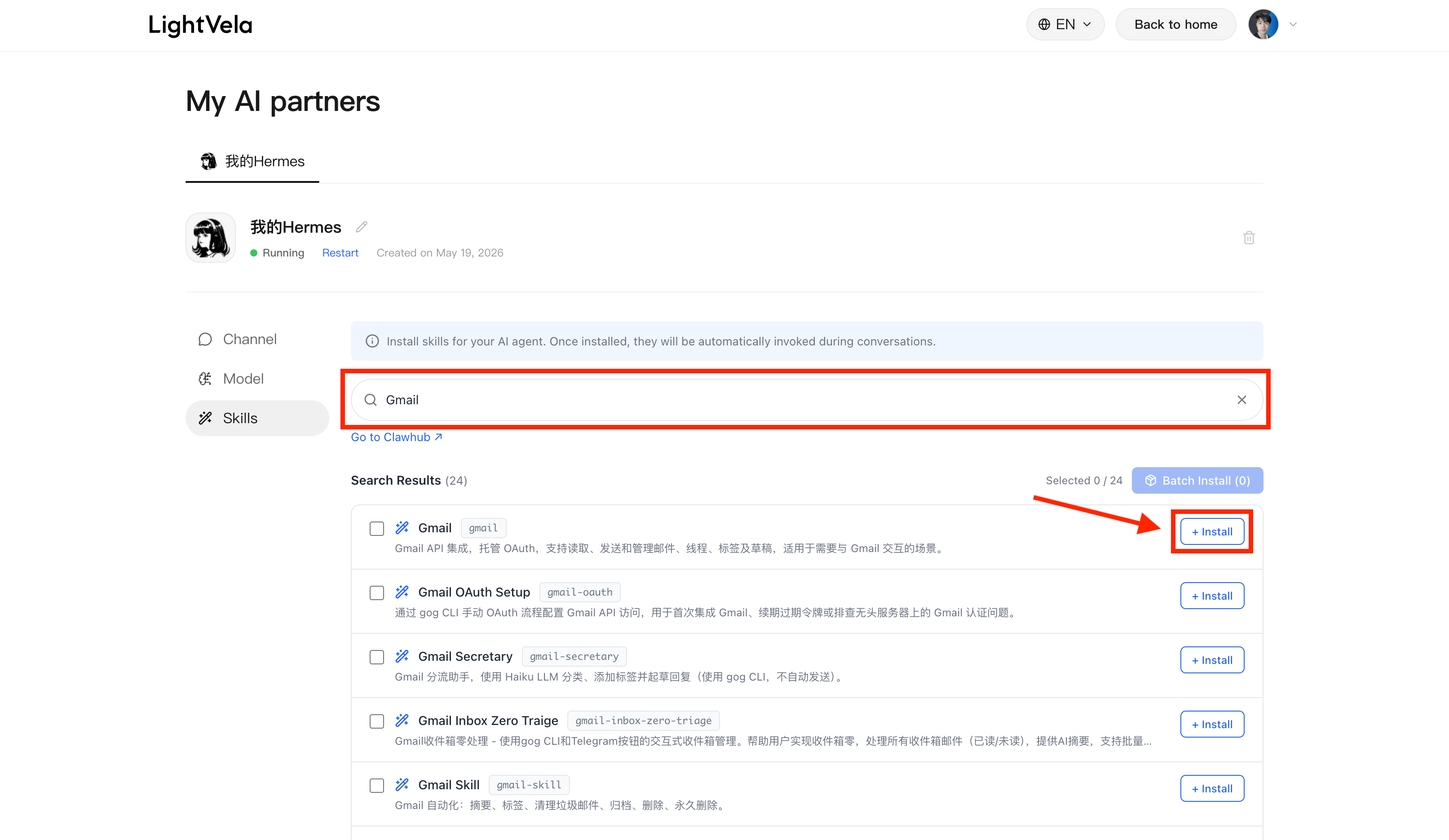
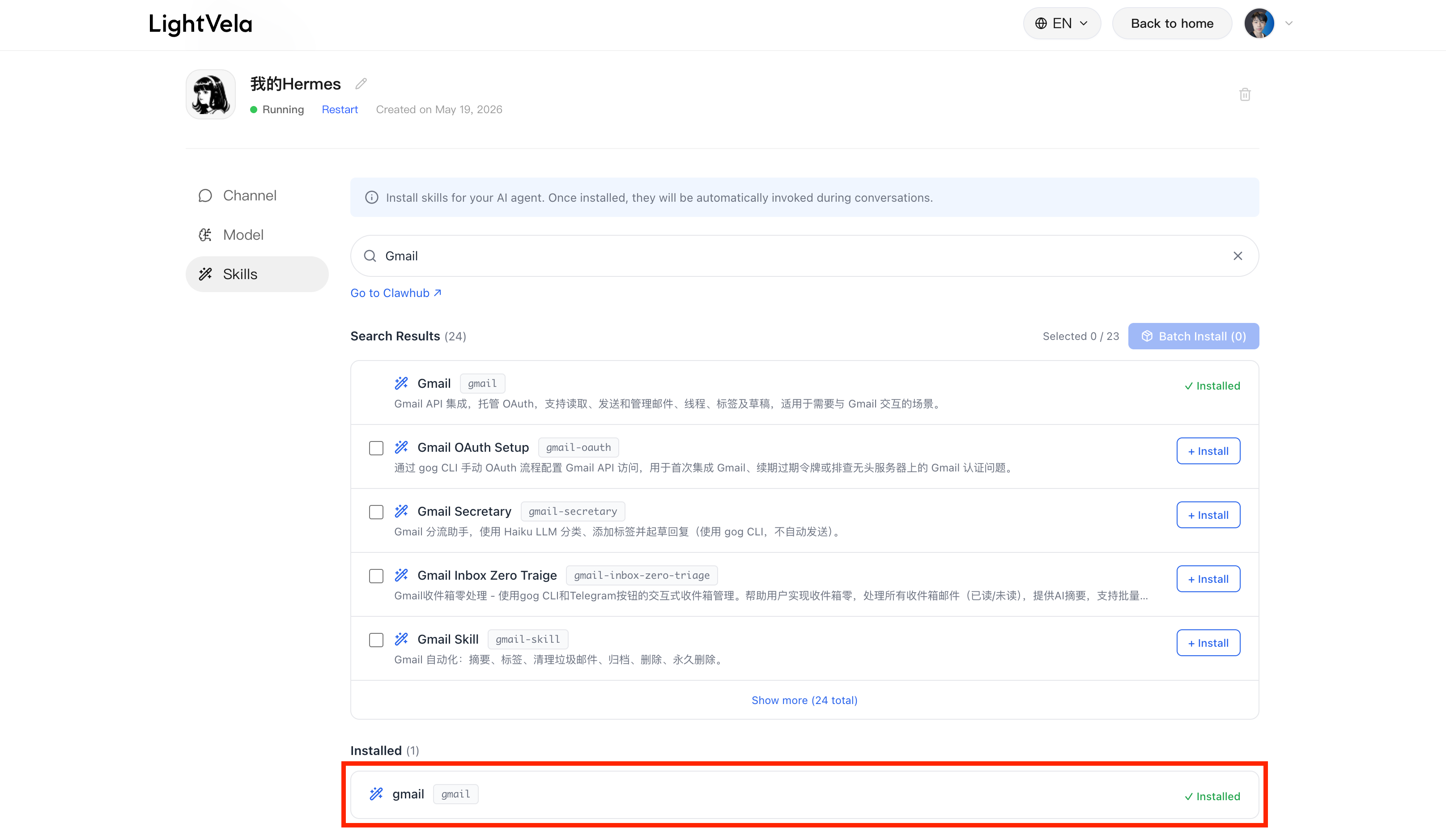
Wait a moment. After installation succeeds, the skill appears in the "Installed skills" list.
4. Confirm availability in conversation
Return to a connected channel (WeChat / Telegram / WhatsApp / Discord). First ask Hermes to update its skill list, then check the currently available skills:
Please update your skill listWhat skills are currently available?If the newly installed skill appears in the list, you can start using it in conversation.
---
Method 2: Install directly through conversation
In addition to using the console panel, you can also ask Hermes to install a skill directly through conversation. The skill to install still needs to be listed on ClawHub.
1. Confirm the conversation channel is available
First make sure Hermes is connected to at least one channel (WeChat / Telegram / WhatsApp / Discord) and can currently chat normally.
2. Tell Hermes which skill to install
Use the command below as a reference. Tell Hermes what skill you want to install and replace [skill name] with the actual name from ClawHub:
Please install a skill from ClawHub. Its name is [skill name]For example, to install mcd (McDonald's assistant):
Please install a skill from ClawHub. Its name is mcdIf everything goes well, Hermes will complete the installation directly and tell you the result.
> ⚠️ Secondary confirmation for high-risk skills > > If the selected skill is marked as high-risk in ClawHub (it may contain unsafe behavior), Hermes will remind you and request secondary confirmation before installation. Please make sure you fully understand the behavior of the skill before deciding whether to continue. If you are unsure, proceed with caution.
3. Verify the installation result
You can ask Hermes to show how to use the skill to verify that installation succeeded:
Please show me how to use itOr specify the skill name explicitly:
Please show me how to use mcd---
Skill usage examples
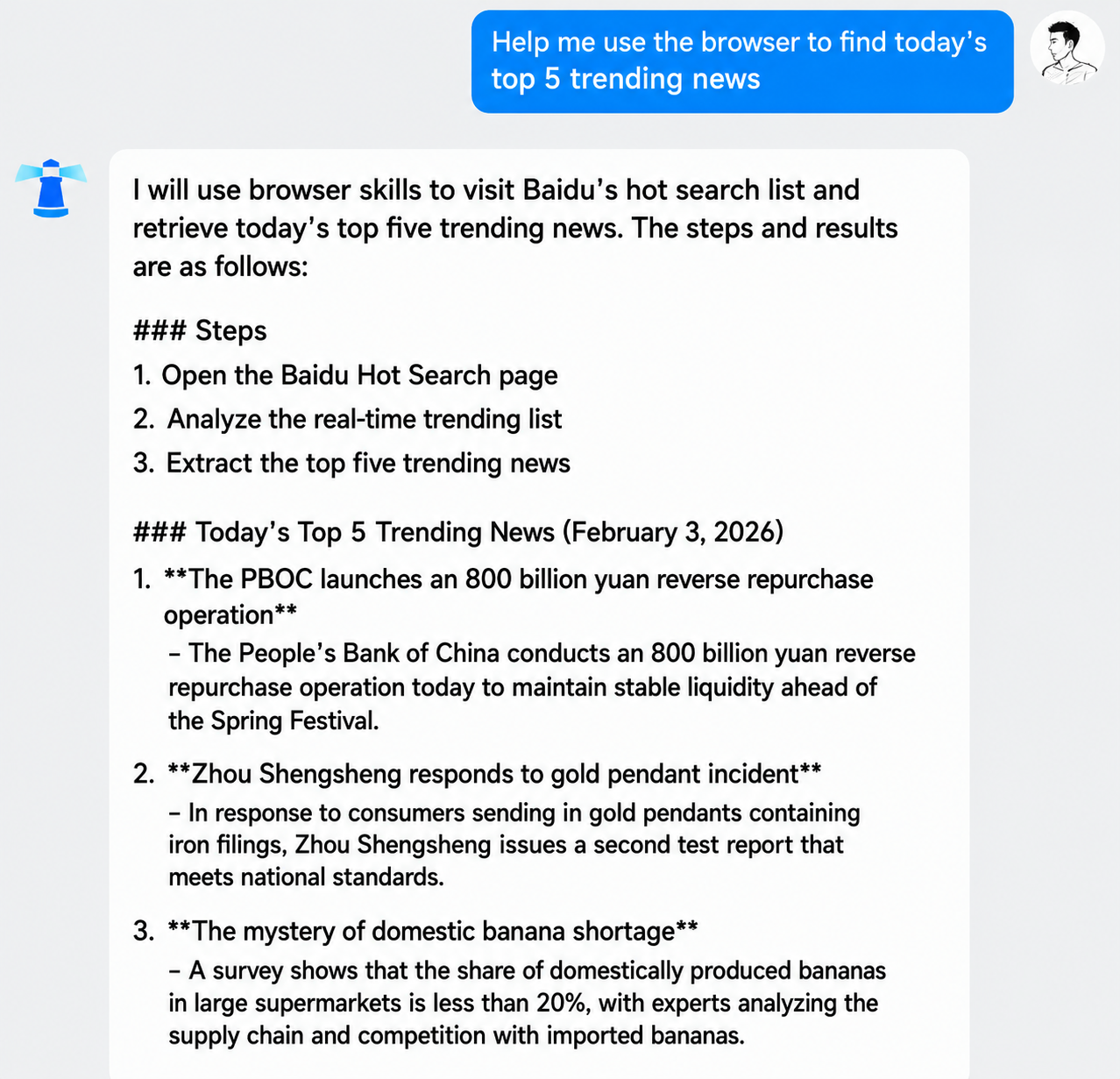
Using the agent-browser browser-operation skill on ClawHub as an example, after installation you can ask Hermes to perform the following tasks.
> ℹ️ Note > > The following examples use the WeChat channel. Telegram, WhatsApp, and Discord work the same way.
Scenario 1: Browse a web page
Use the browser to visit Baidu and tell me what is on the pageHermes opens the page and returns the content in text form.
Scenario 2: Search information through the browser
Use the browser to look up today's top 5 trending news storiesScenario 3: Multi-step complex task
Use the browser to search ClawHub and find the currently most-installed email skillThis task includes multiple steps such as opening a web page, waiting for it to load, entering content, and clicking buttons. It is relatively complex. Hermes completes the steps and returns the result.
---
Delete installed skills
If you no longer use an installed skill, you can ask Hermes to delete it through conversation.
1. View currently installed skills
What skills do you currently have installed?2. Request deletion of a specific skill
Find the skill you want to delete and send a deletion command:
Please delete the email skillIf everything goes well, Hermes will complete the deletion and tell you the result.
> ℹ️ Possible secondary confirmation > > Depending on the model being used or Hermes's personality settings, it may remind you to be careful when deleting. Reply with confirmation according to your actual needs.
3. Verify the deletion result
Check the currently installed skills again and confirm the target skill has been removed from the list:
Check again what skills you currently have installed> ℹ️ Currently only conversation-based deletion is supported > > LightVela uses a cloud-hosted mode and does not provide user-facing file-system operations. Skills can only be deleted through conversation with Hermes.
---
Success state
- The target skill appears in the "Installed skills" list in the console
- When you make a related request in conversation, Hermes can correctly recognize and call the skill
- The skill can be deleted normally through conversation
---
Installation safety tips
> ⚠️ Safety confirmation before installation
Skills have permission to call Hermes capabilities at runtime and may involve:
- Calling external APIs (consuming the corresponding quota)
- Reading or sending conversation content
- Running scheduled operations
Before installation, confirm that the skill author is trustworthy. We recommend:
- Prefer officially verified skills on ClawHub
- Prefer skills with high downloads and good reviews
- Carefully read the permission description in the skill description
- Stay cautious with skills that have unclear descriptions or unfamiliar authors
---
FAQ
Cannot find a skill
Possible cause: The name is misspelled, or the skill has been removed from ClawHub.
Solution: Go to ClawHub to confirm the exact skill name and current status.
Installation succeeds but does not take effect in conversation
Possible cause: The model did not recognize that it should use the skill, or the skill list has not been refreshed.
Solution:
- Send "Please update your skill list" in the conversation
- Use a clearer instruction, such as "Use the XX skill to complete YY"
Installation says "rate limit triggered, please try again later"
Possible cause: ClawHub applies API rate limits to protect service stability.
Solution: Wait for a while and try again. We recommend avoiding peak hours.
Skill calls keep failing
Possible causes:
- External services required by the skill are temporarily unavailable
- The skill version is outdated
- The corresponding model does not support the capabilities required by the skill, such as tool calling
Solution:
- Check the skill's comments and latest version information in ClawHub
- Try switching to a model that supports tool calling
- If the issue persists, contact the skill author
Too many installed skills make Hermes respond slowly
Possible cause: More skills increase the decision-making burden of the Agent.
Solution: Keep only commonly used skills and delete those you no longer use.
How to develop skills
See ClawHub developer documentation (if available).
---
Next steps
LightVela basic configuration is complete. You can refer to: