Configure Channel - Lark
The Lark channel is suited for office scenarios. It supports rich-text messages and @mentions of the bot in group chats. The integration uses QR-code authorization, similar to WeChat.
This page covers
- Generating a Lark access QR code in LightVela
- Scanning the QR code with Lark to authorize
- Chatting with Hermes in Lark
> 💡 Prerequisites > > - A phone with Lark installed (or a desktop Lark already signed in) > > - Complete model configuration (or use the 100 trial credits included in the Launch plan) >
---
Steps
1. Enter the console
Sign in to LightVela, click "My Hermes" in the upper-right corner to enter the console, and find the "Channel" button.
2. Select the Lark channel
Click the dropdown and select "Lark". The Lark channel introduction appears below.
3. Click "Authorize Access"
A QR code appears on the page.
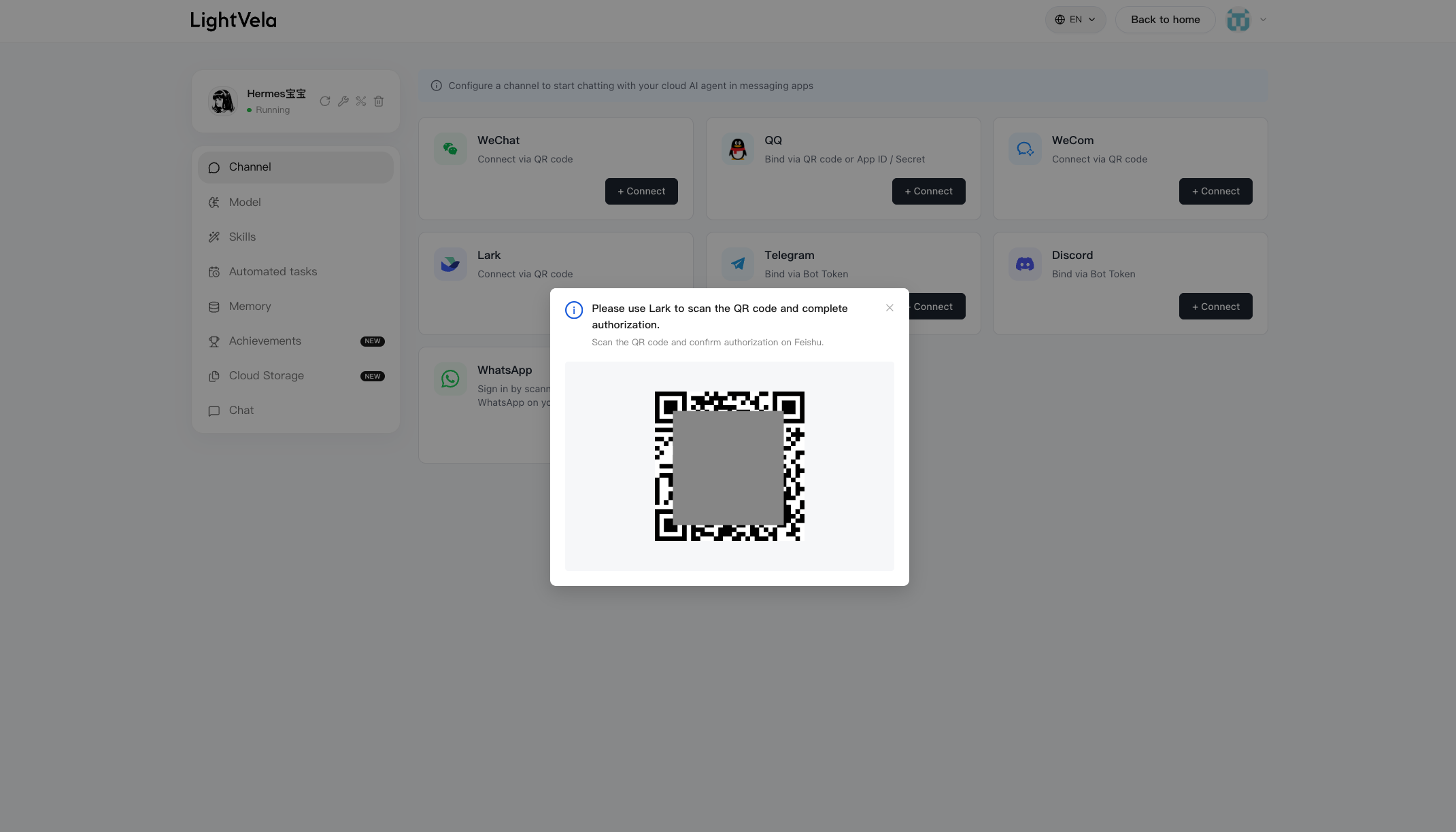
4. Scan with Lark
On mobile:
- Open Lark
- Tap "+" in the upper-right corner → "Scan"
- Scan the QR code on your computer screen
- Follow the prompts to complete authorization
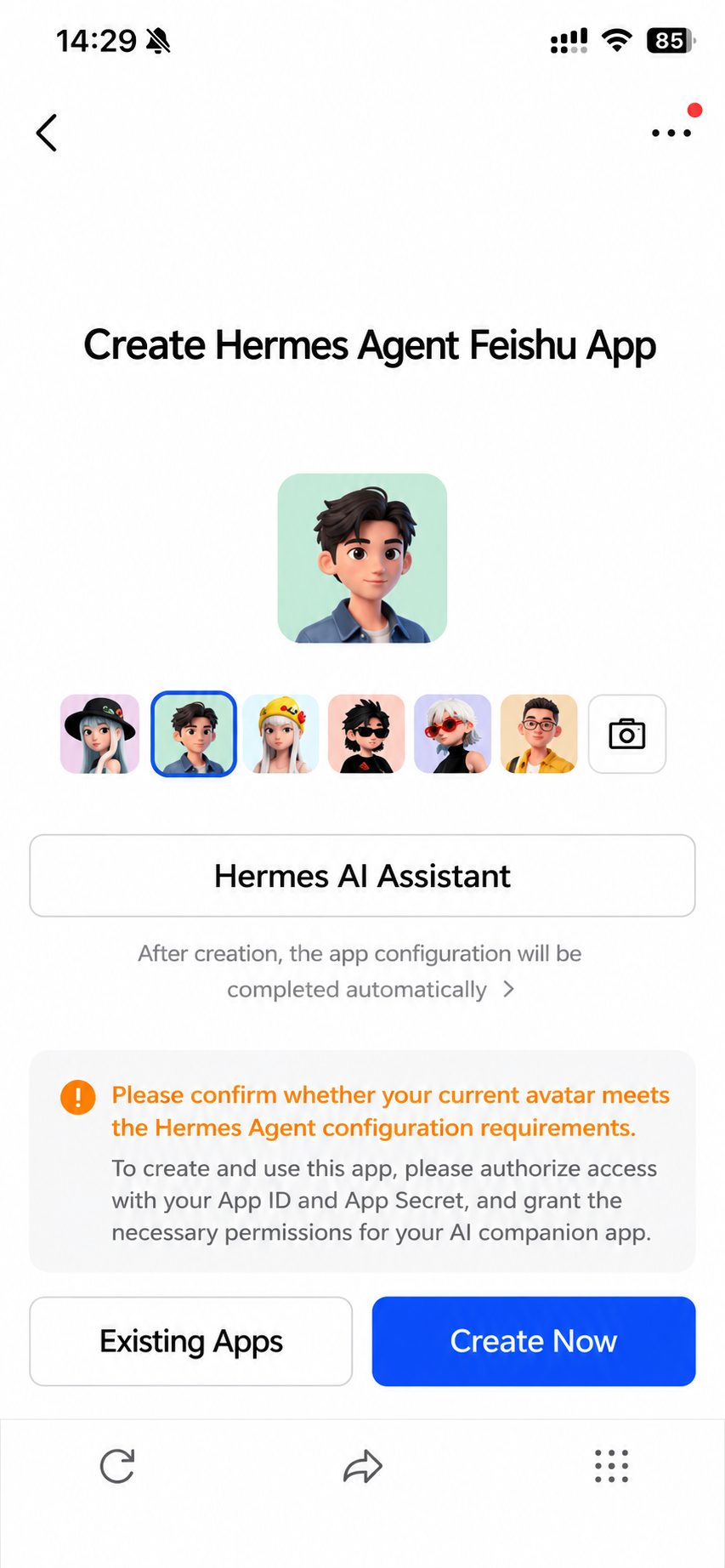
5. Find Hermes in Lark
After a successful scan:
- A "Lark" entry appears in the console's "Connected Channels" list
- Lark automatically adds the bot to your contacts
Search Lark for the application name you created.
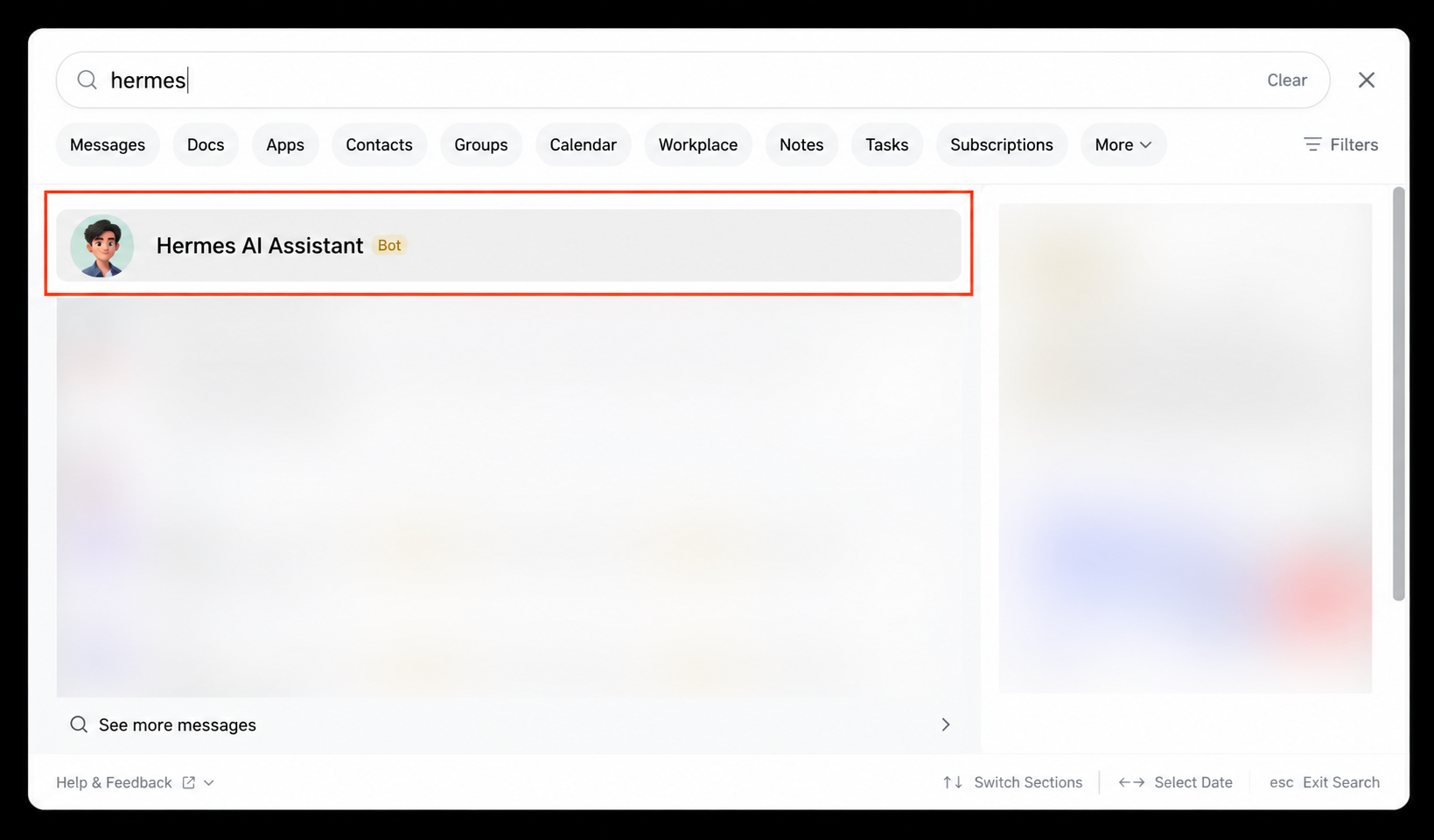
Open the bot's chat window and send a test message:
Hello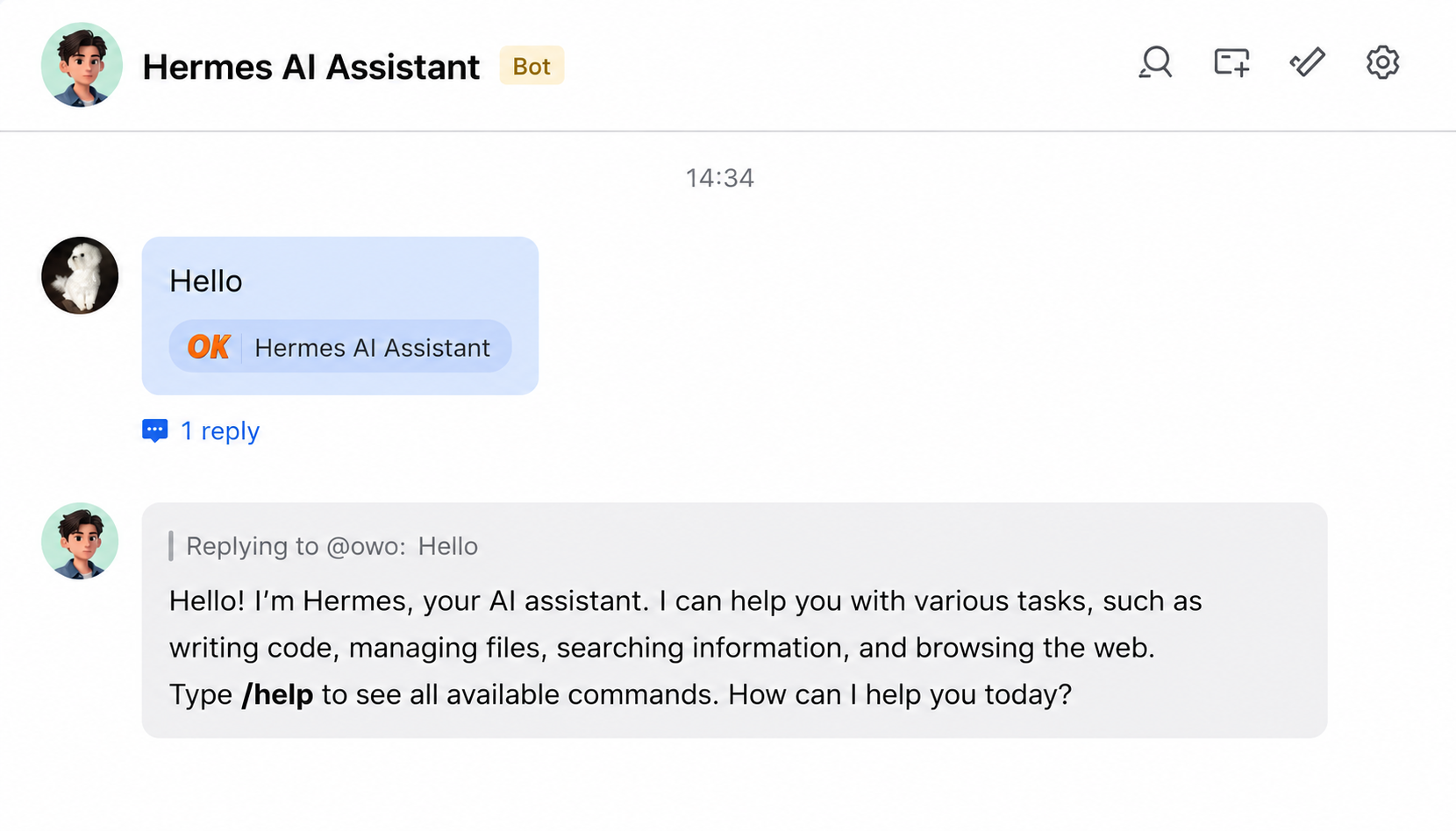
Success state
- A "Lark" entry appears in the console's "Connected Channels" list
- The bot can be found via Lark search
- Sending a message receives a Hermes reply
---
Supported message types
After integration, the Lark bot supports more than basic text. The full list:
| Lark bot — supported message types and features | Supported |
|---|---|
| Receive text messages | ✅ Yes |
| Receive images | ✅ Yes |
| Receive files | ✅ Yes |
| Receive audio / video | ✅ Yes |
| Reply with text messages | ✅ Yes |
| Reply with images | ✅ Yes |
| Reply with files | ✅ Yes |
| Reply with audio | ✅ Yes |
| Reply content supports Markdown | ✅ Yes |
| Send messages proactively (e.g. scheduled reminders) | ✅ Yes |
| Operate Lark Docs, Wiki, Drive | ✅ Yes |
> ℹ️ Actual capability depends on the model > > The table above only reflects what the Lark bot can receive and reply with at the channel layer. Whether tasks such as image / file processing actually work depends on whether the underlying LLM connected to Hermes supports those capabilities.
---
FAQ
| Symptom | Possible cause | Resolution |
|---|---|---|
| Scan shows "Application not authorized" | Tenant admin restricts third-party apps | Ask your tenant admin to allow the app, or switch to a personal tenant |
| Bot contact not found | Lark collapses bots by default | Search the Hermes application name from the top of Lark |
| How to add the bot to a group | — | In group settings, "Add Members", search for the bot and add it |
| QR code expired | Not scanned within the validity window | Close the dialog and click "Authorize Access" again |
| No reply after sending a message | Model not configured or trial credits exhausted | Check the "Current Model" status |
| Rich-text rendering issues | Lark does not support some Markdown syntax | Plain-text conversation is unaffected |
---
Channel notes
- Message types: Text, rich text, images, files, audio, video, and more — see "Supported message types" above
- Group chat support: The bot can be added to group chats and will respond when @mentioned
- Tenant restrictions: Whether an enterprise Lark tenant allows third-party bots depends on the tenant admin's policy
---
Next steps
- Configure Skills — Extend Hermes capabilities