Configure Channel - Discord
The Discord channel uses Bot authorization access and is suitable for connecting Hermes to a Discord server, providing Q&A, assistant, or community-interaction capabilities in channels.
This page covers
- Opening an invite link in Discord and completing authorization
- Chatting with Hermes in a Discord server or channel
> 💡 Prerequisites > > - A Discord account that can sign in > > - A Discord server where you can add bots > > - Complete model configuration (or use the 100 trial credits included in the Launch plan) >
---
Steps
1. Enter the console
Sign in to LightVela, click "My Hermes" in the upper-right corner to enter the console, and find the "Channel" button.
2. Select the Discord channel
Find the Discord card and click "+ Connect".
3. Open Discord and go to the Developer Portal
Choose the server you want to add the bot to, then go to the Developer Portal:
- Click Applications
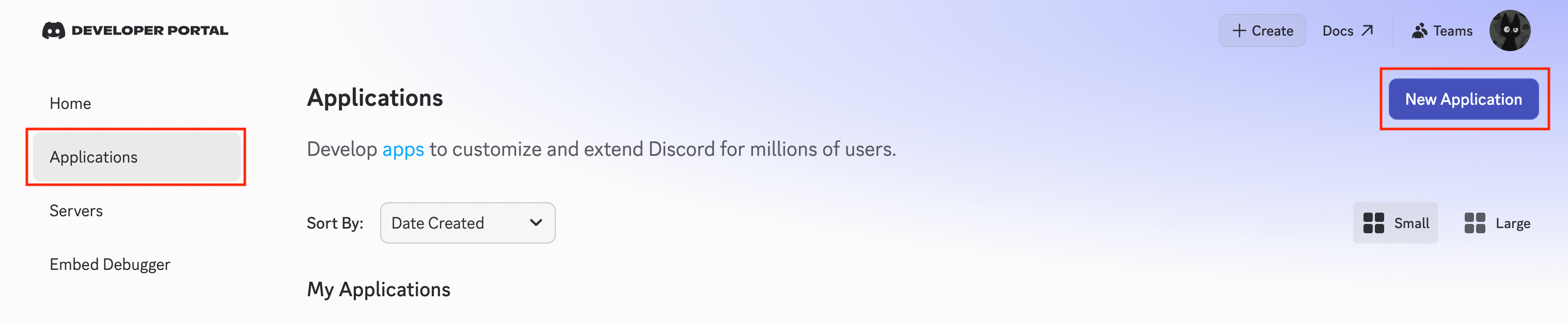
- Click New Application in the upper-right corner
- Give your Application a name
- Add a bot to your application and generate a bot token. The token is used to authenticate the connection between Hermes and your Discord server.
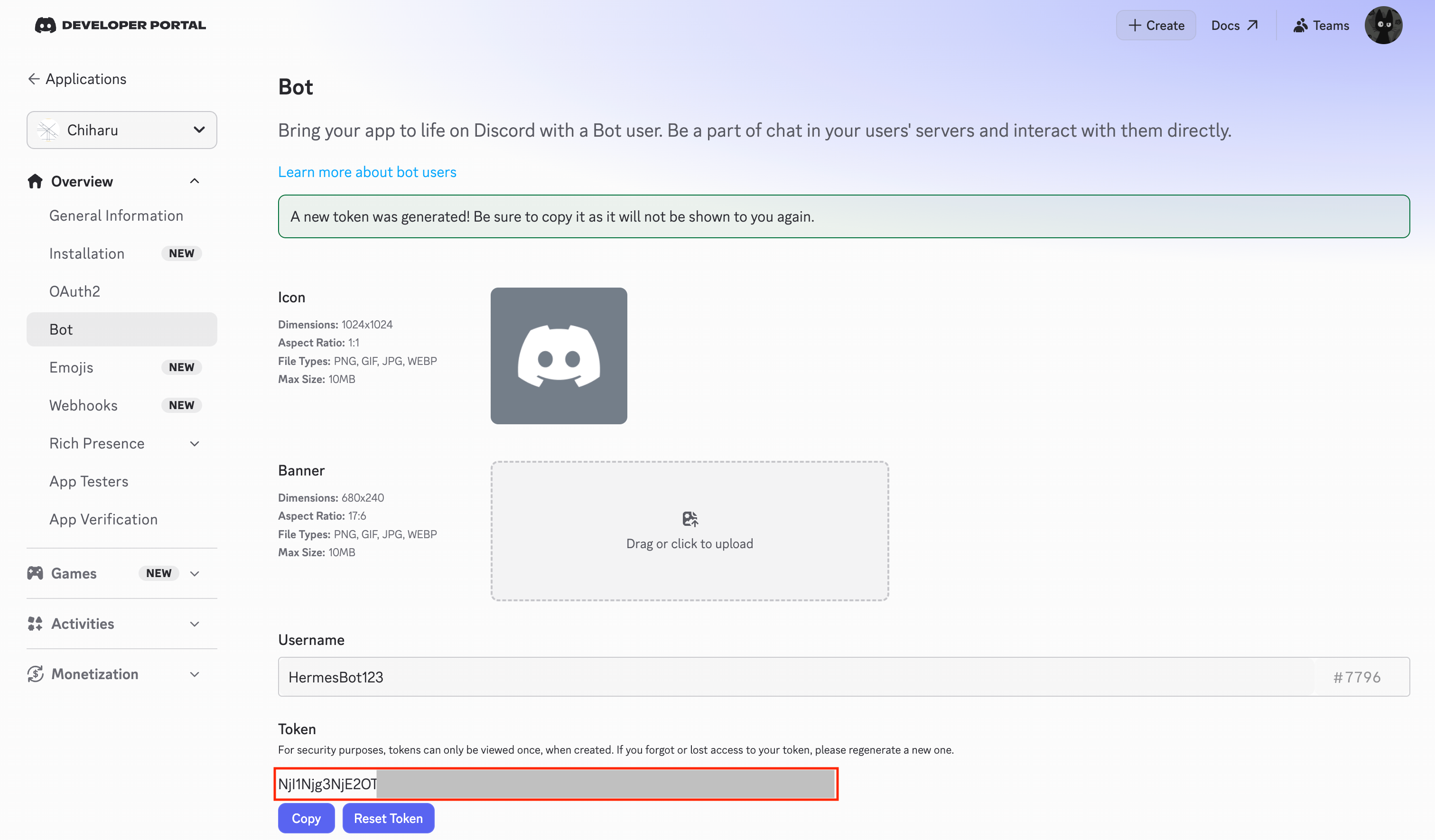
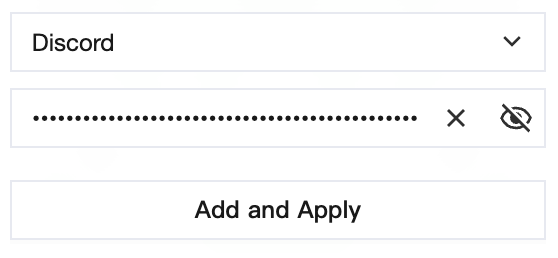
- Paste the token into the Discord card.
4. Go to the Bot page in the Developer Portal
On the Bot page, scroll down to Privileged Gateway Intents and enable:
- Message Content Intent: required, used to read message content
- Server Members Intent: recommended, used for the role list and matching names to IDs
- Presence Intent: optional, only used for status updates
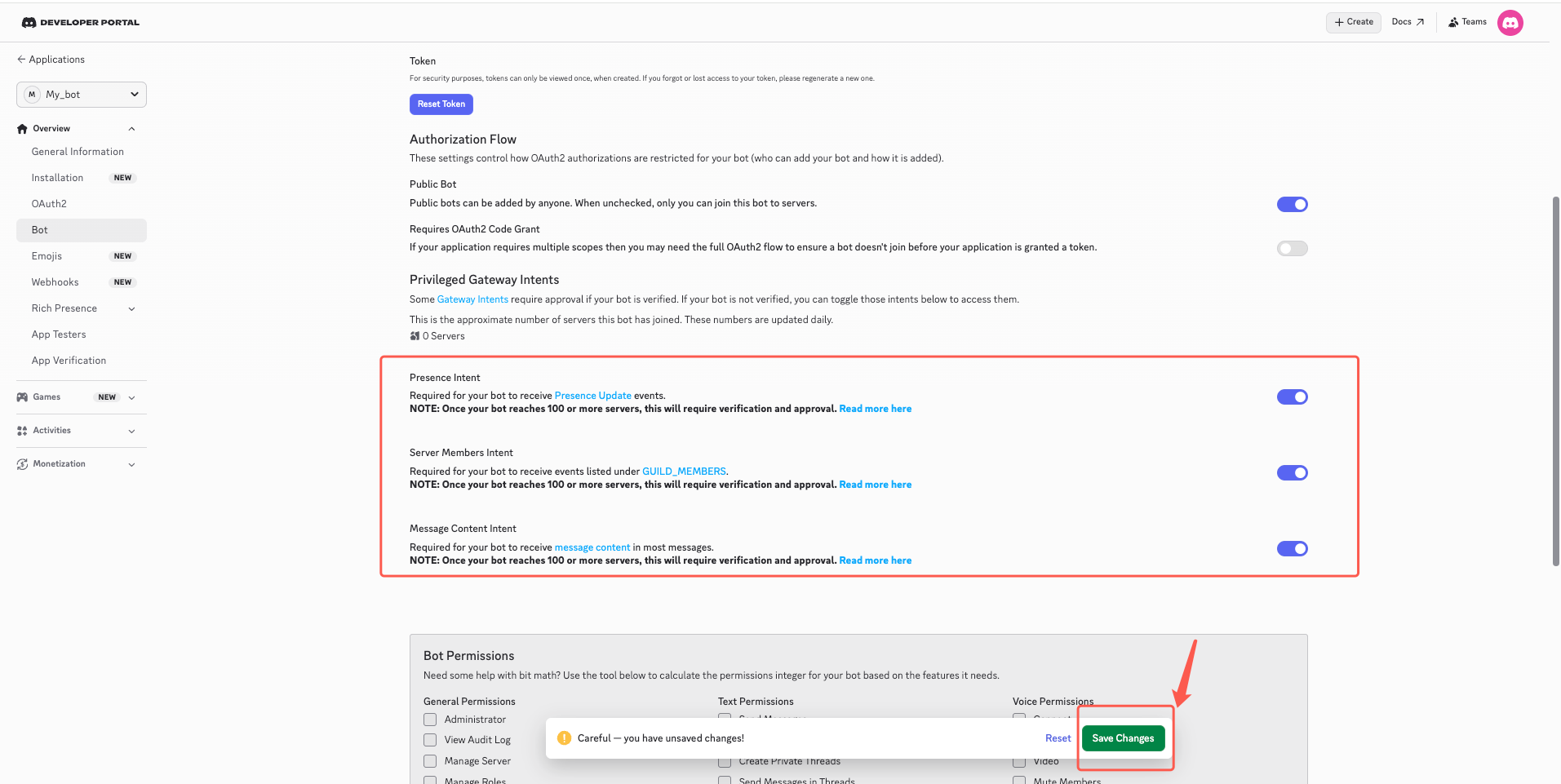
After enabling them, click Save Changes at the bottom.
5. Go to the OAuth2 page in the Developer Portal
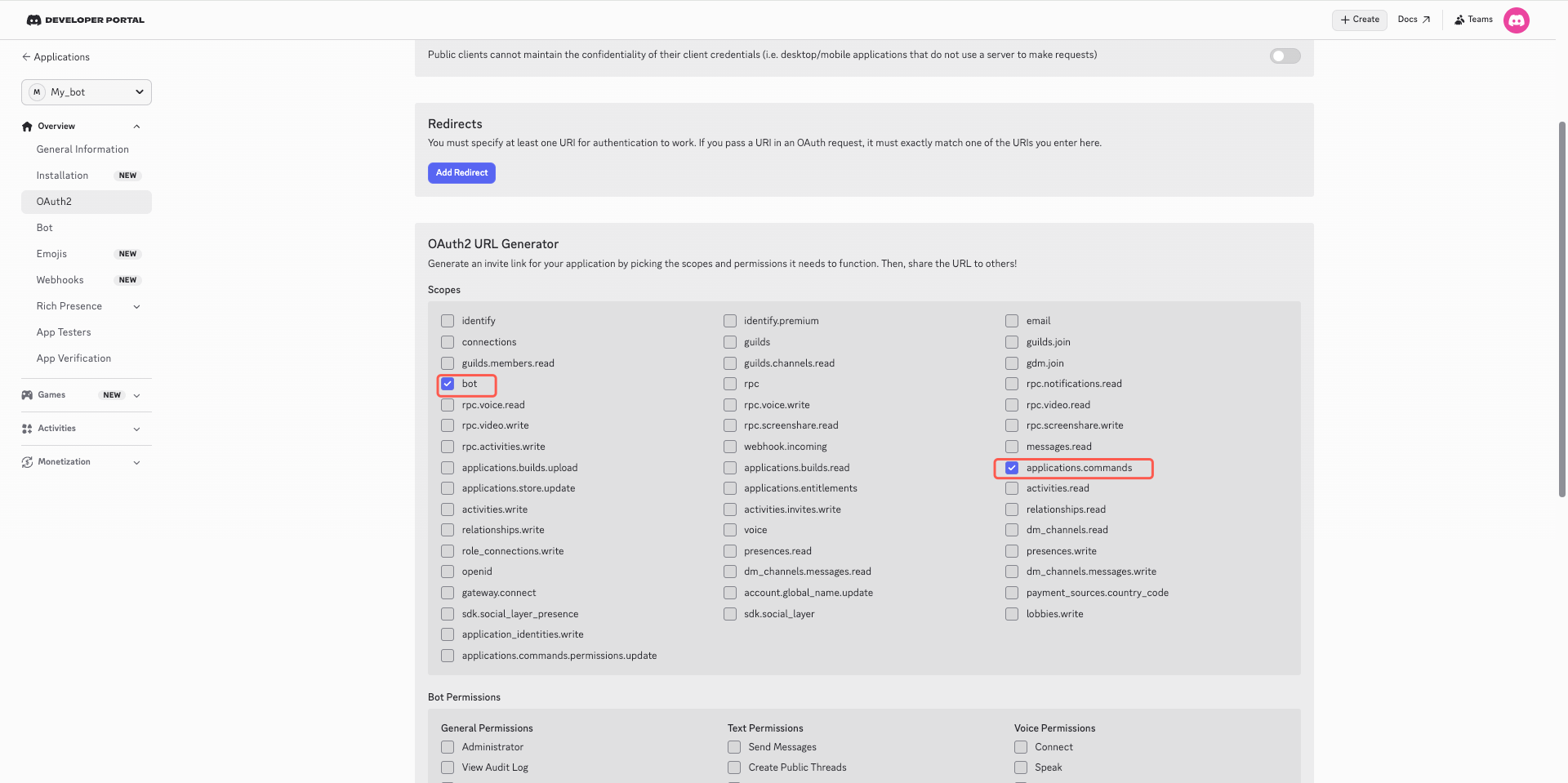
Configure bot permissions: click OAuth2 in the left sidebar, then choose OAuth2 URL Generator. Configure Scopes first; following the principle of least privilege, prefer bot and applications.commands.
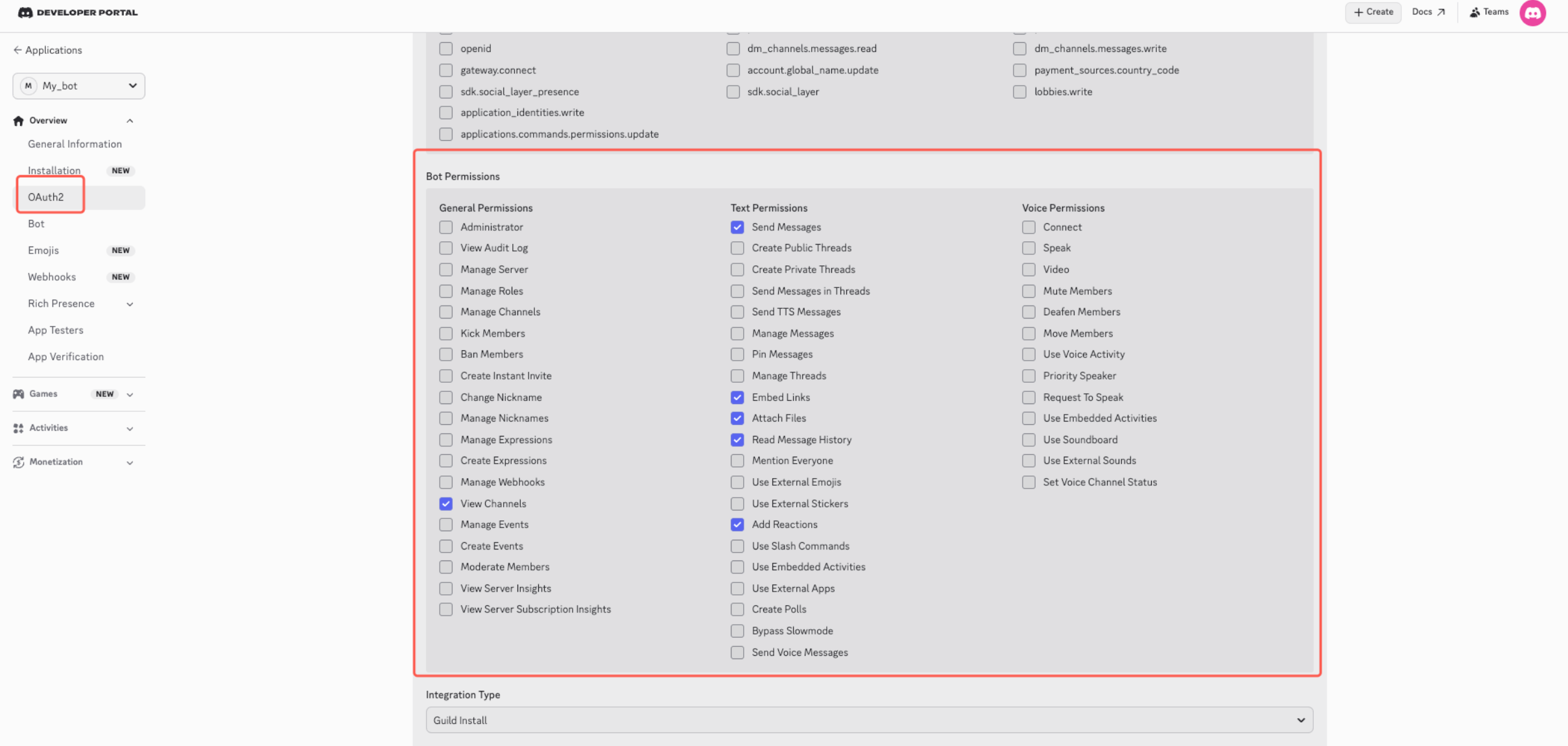
Continue scrolling down to configure Bot Permissions, and select:
- View Channels
- Send Messages
- Read Message History
- Embed Links
- Attach Files
- Add Reactions (optional)
6. Copy and open the invite link
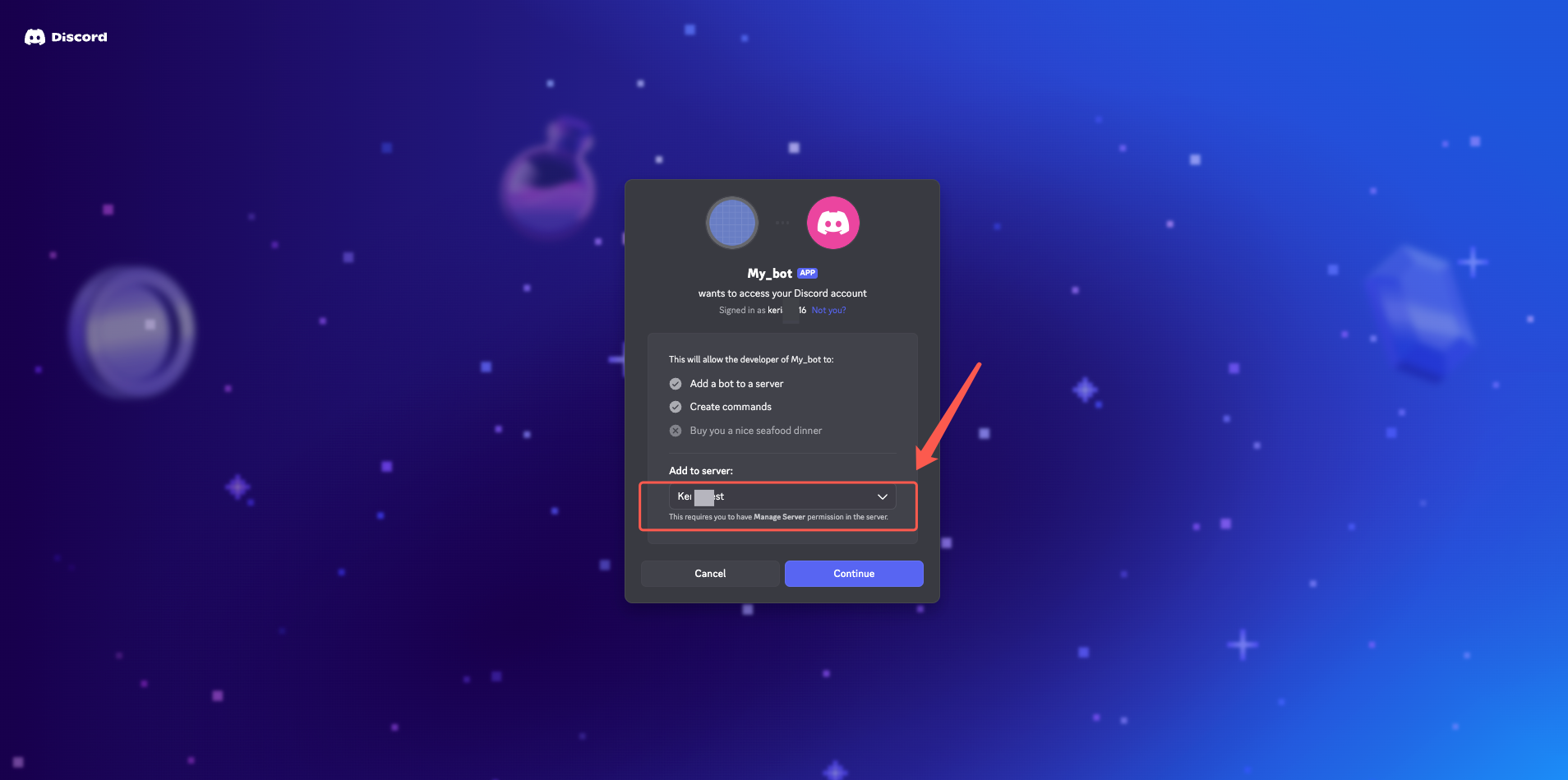
Copy the generated Invite Link, open it in your browser, and invite the bot to your Discord server (server admin permission required). After clicking Continue and authorizing, the bot will be invited to the server.
7. Chat with the new bot in Discord
You can now start interacting with the bot. Open the chat with the bot and send a test message:
Hi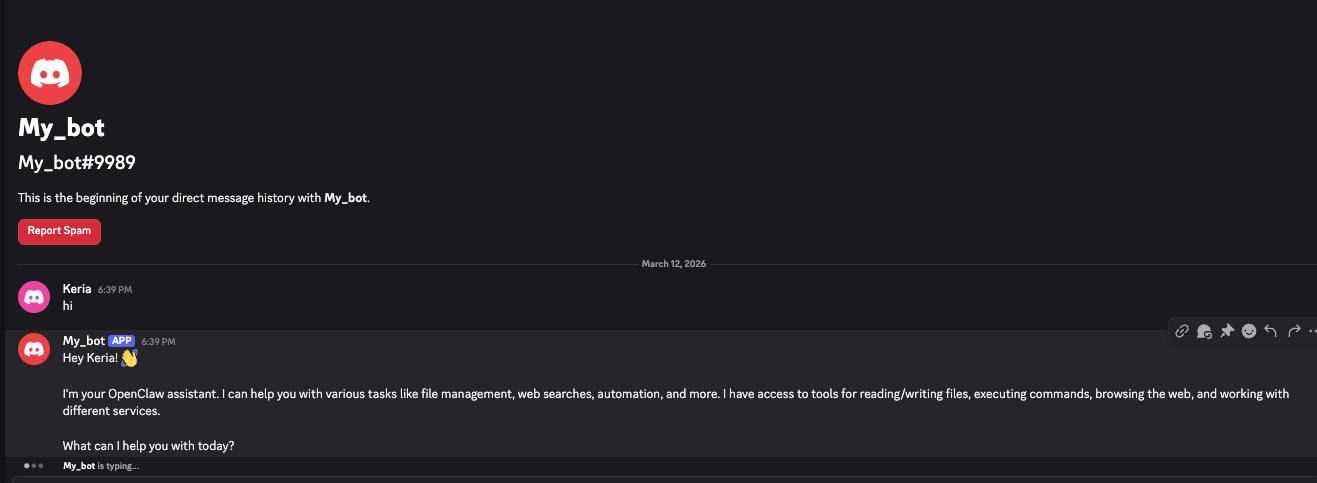
You should receive a Hermes reply within a few seconds.
---
Success state
- The "Connected channels" list in the console contains "Discord"
- The corresponding bot can be found in Discord contacts
- Hermes replies after you send a message
---
Supported message types
After access succeeds, the Discord bot can receive and reply to basic text messages and supports more message types as follows:
| Message type supported by Discord bot | Supported |
|---|---|
| Receive text messages | ✅ Supported |
| Receive images and videos | ✅ Supported |
| Receive files | ✅ Supported |
| Reply with text messages | ✅ Supported |
| Reply with images and videos | ✅ Supported |
| Reply with files | ✅ Supported |
| Proactively send messages (such as scheduled reminders) | ✅ Supported |
> ℹ️ Actual processing capability depends on the model > > The table above only indicates the message types supported by the Discord bot at the channel layer. Whether images, files, and other tasks can actually be processed also depends on whether the large language model connected to Hermes has the corresponding capabilities.
---
FAQ
| Issue | Possible cause | Solution |
|---|---|---|
| Cannot create a Discord Bot | Did not enter the Discord Developer Portal, or the application creation flow was not completed | Enter the Discord Developer Portal, create an Application, then add a Bot |
| Cannot find the Bot Token | Token was not generated or was not copied in full | On the Bot page, click Reset Token / Copy Token, then paste the full token into the token field |
| Token shows as invalid after pasting | The token is incomplete or contains extra spaces / line breaks | Re-copy the full Bot Token and confirm there are no extra spaces |
| Cannot invite the bot to a server | OAuth2 URL is misconfigured, or your account lacks server admin permission | In the OAuth2 URL Generator, select the bot scope, and confirm you have admin rights on the server |
| Bot does not appear in the server after the invite | The invite was not completed, or the bot is not online | Reopen the invite link to confirm authorization succeeded; refresh the Discord server member list |
| No reply after sending a message | Model is not configured, trial credits are exhausted, or the Discord channel has not been connected successfully | Check the "Current model" status in the "1. Model" card and confirm the Discord channel shows as connected |
| Bot cannot read message content | Message Content Intent is not enabled | Enable Message Content Intent in the Bot settings of the Discord Developer Portal |
| Bot has no permission to reply in a channel | Insufficient channel permissions | Confirm the bot has View Channels, Send Messages, Read Message History, and other necessary permissions |
| Bot cannot receive direct messages | DM permission or user privacy settings restrictions | Confirm the bot allows DMs, and check the user's Discord privacy settings |
| How to unlink | — | Delete the corresponding Discord record in the "Connected channels" list |
| Can the same Discord Bot connect to multiple Hermes instances | Not recommended; one Bot Token should be bound to one Hermes | If you need multiple Hermes instances, create separate Discord Bots |
---
Channel notes
- Message types: Supports text, images, videos, files, voice messages, and more. See "Supported message types" above
- Group chat support: Group chats are not currently supported; only 1-to-1 conversations are supported
- Connection interruption: Long periods of no response may indicate authorization was revoked. Return to the console and authorize access again
---
Next steps
- Configure Channel - QQ — Bot created manually, integrated via AppID/AppSecret
- Configure Channel - WeCom — Enterprise internal collaboration and office scenarios
- Configure Channel - Lark — Office scenarios with rich text and group chat
- Configure Skills — Extend Hermes capabilities