Configure Channel - WhatsApp
The WhatsApp channel uses QR-code access, similar to WeChat, and is suitable for quickly connecting Hermes to WhatsApp conversations.
This page covers
- Scanning a QR code with WhatsApp on your phone to authorize access
- Chatting with Hermes in WhatsApp
> 💡 Prerequisites > > - A phone with WhatsApp installed > > - Complete model configuration (or use the 100 trial credits included in the Launch plan) >
---
Steps
1. Enter the console
Sign in to LightVela, click "My Hermes" in the upper-right corner to enter the console, and find the "Channel" button.
2. Select the WhatsApp channel
Find the WhatsApp card and click "+ Connect".
3. Scan the QR code with WhatsApp on your phone
- Open WhatsApp on your phone
- Tap the "Camera" button in the upper-right corner
- Scan the QR code on your computer screen
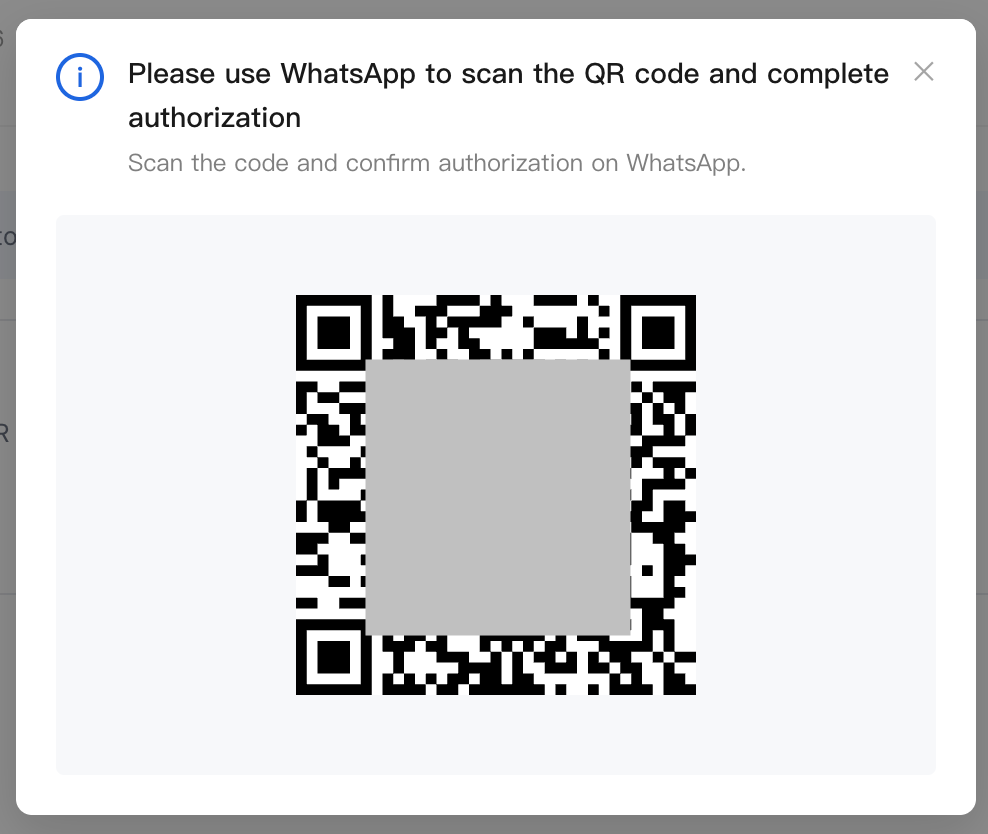
- Follow the prompts on your phone to complete the connection
4. Find yourself in WhatsApp
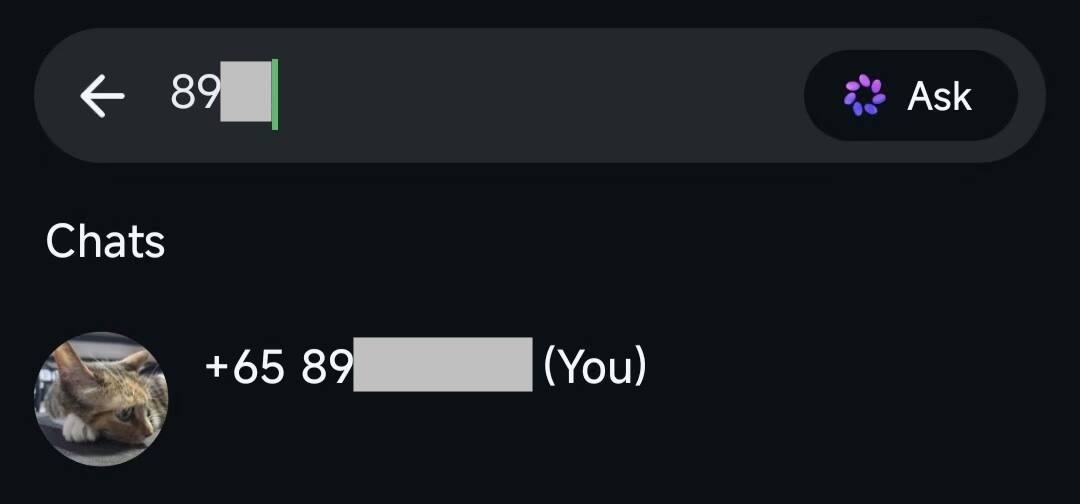
Chat with yourself — that's your bot.
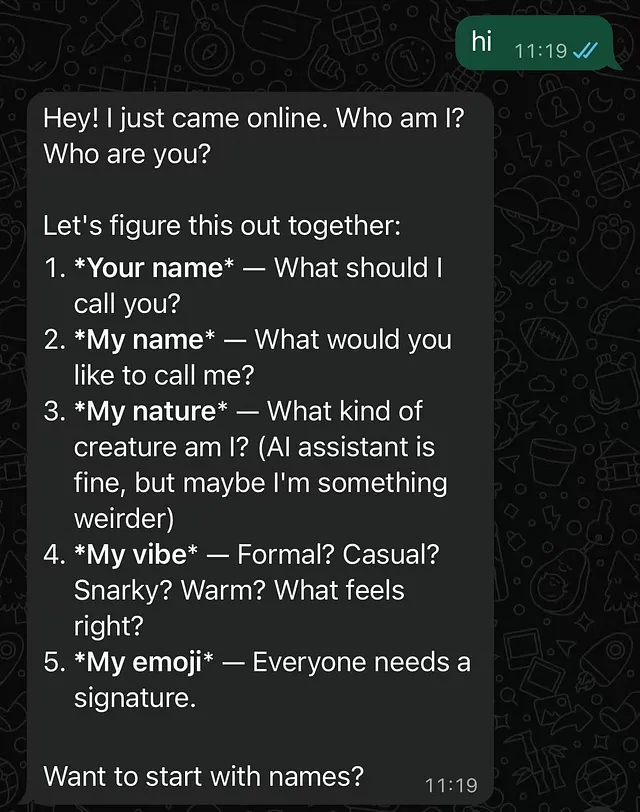
Open the chat with the bot and send a test message:
HiYou should receive a Hermes reply within a few seconds.
---
Success state
- The "Connected channels" list in the console contains "WhatsApp"
- The corresponding bot can be found in WhatsApp contacts
- Hermes replies after you send a message
---
Supported message types
After access succeeds, the WhatsApp bot can receive and reply to basic text messages and supports more message types as follows:
| Message type supported by WhatsApp bot | Supported |
|---|---|
| Receive text messages | ✅ Supported |
| Receive images and videos | ✅ Supported |
| Receive files | ✅ Supported |
| Reply with text messages | ✅ Supported |
| Reply with images and videos | ✅ Supported |
| Reply with files | ✅ Supported |
| Proactively send messages (such as scheduled reminders) | ✅ Supported |
> ℹ️ Actual processing capability depends on the model > > The table above only indicates the message types supported by the WhatsApp bot at the channel layer. Whether images, files, and other tasks can actually be processed also depends on whether the large language model connected to Hermes has the corresponding capabilities.
---
FAQ
| Issue | Possible cause | Solution |
|---|---|---|
| Cannot connect to WhatsApp | Phone number format is incorrect, or WhatsApp Business configuration is incomplete | Use a complete international format such as +1 or +86, and check that WhatsApp Business / Meta configuration is complete |
| Verification code not received | Phone number unavailable, network delay, or WhatsApp verification limits | Confirm the phone number can receive WhatsApp messages; wait a few minutes and retry |
| Verification code shows as invalid after entering | Code expired or entered incorrectly | Request a new code and confirm there are no extra spaces |
| No response in the console after access | Authorization or configuration has not finished syncing | Refresh the console to confirm status; if access did not succeed, try again |
| Cannot find the bot contact in WhatsApp | The bot's number was not saved, or the chat has not started | Save the bot's number, or open the chat via the link / QR code provided by the console |
| No reply after sending a message | Model is not configured, trial credits are exhausted, or the WhatsApp channel has not been connected successfully | Check the "Current model" status in the "1. Model" card and confirm the WhatsApp channel shows as connected |
| Cannot receive images, files, or voice messages | Media permission, format, or channel capability limits | Confirm the file type is supported; if voice cannot be recognized, check whether speech-to-text / media processing is enabled |
| Proactive messages fail | WhatsApp limits proactive messages via message templates and conversation windows | Confirm the user has started a conversation with the bot; if the conversation window has expired, use an approved message template |
| How to unlink | — | Delete the corresponding WhatsApp record in the "Connected channels" list |
| Can the same WhatsApp number connect to multiple Hermes instances | Not recommended; one WhatsApp number should be bound to one Hermes | If you need multiple Hermes instances, use separate WhatsApp numbers |
---
Channel notes
- Message types: Supports text, images, videos, files, voice messages, and more. See "Supported message types" above
- Group chat support: Group chats are not currently supported; only 1-to-1 conversations are supported
- Connection interruption: Long periods of no response may indicate authorization was revoked. Return to the console and authorize access again
---
Next steps
- Configure Channel - Discord — Community operations and developer communities
- Configure Channel - QQ — Bot created manually, integrated via AppID/AppSecret
- Configure Channel - WeCom — Enterprise internal collaboration and office scenarios
- Configure Skills — Extend Hermes capabilities