Automations
Automations let Hermes run specified work on a preset schedule or trigger condition, so you don't have to repeat the same operations manually. Typical scenarios include scheduled reminders, daily report generation, news tracking, and content publishing.
Every task supports flexible scheduling and run rules, keeping your AI assistant proactively working in the background.
What this page covers
- Adding an automation
- Using built-in task templates
- Managing automations
---
Adding an automation
Open the "Automations" tab on the left side of Hermes to view existing tasks, then click "+ Add" at the top right to create a new one.
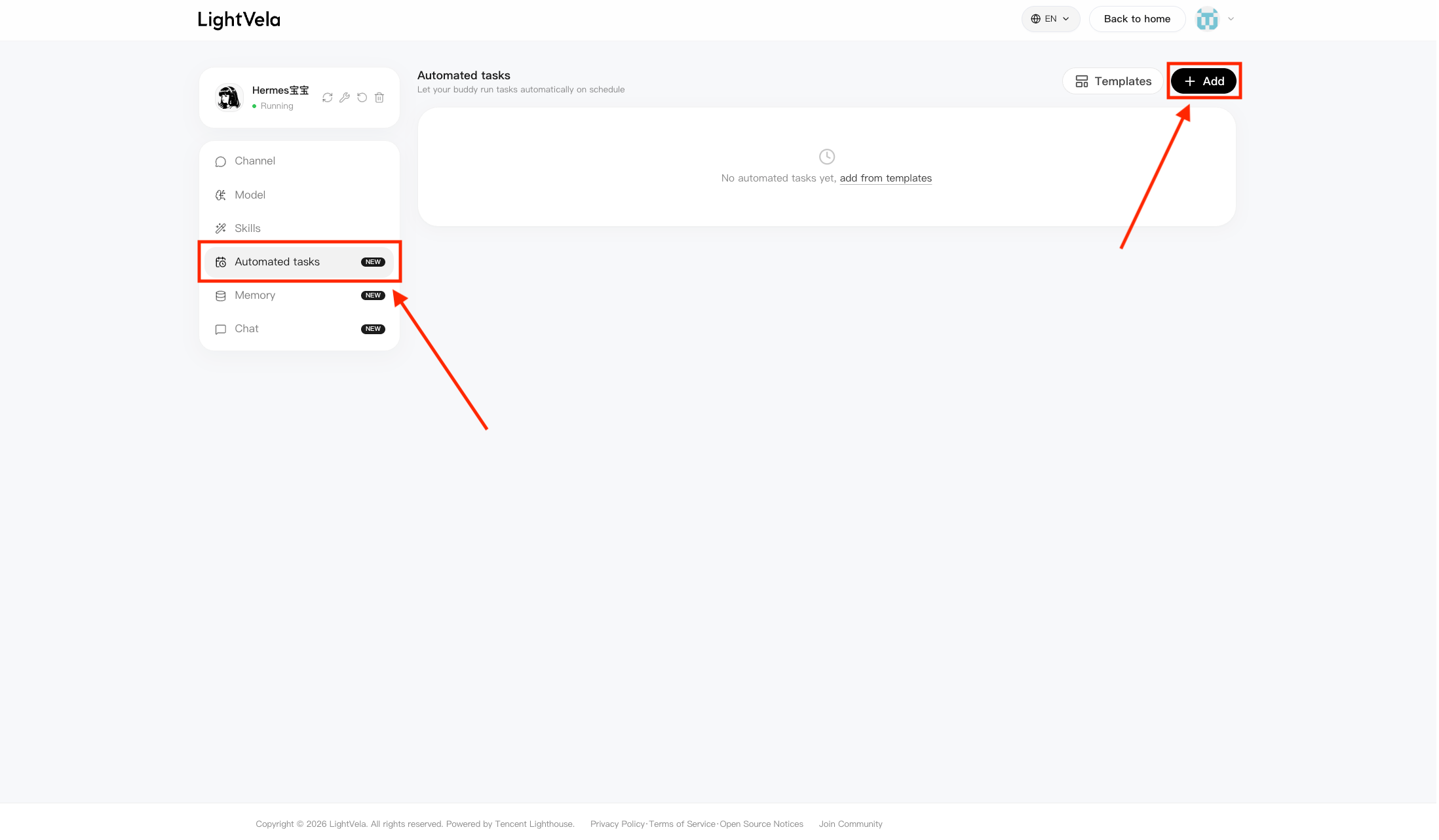
Once opened, you can edit your automation.
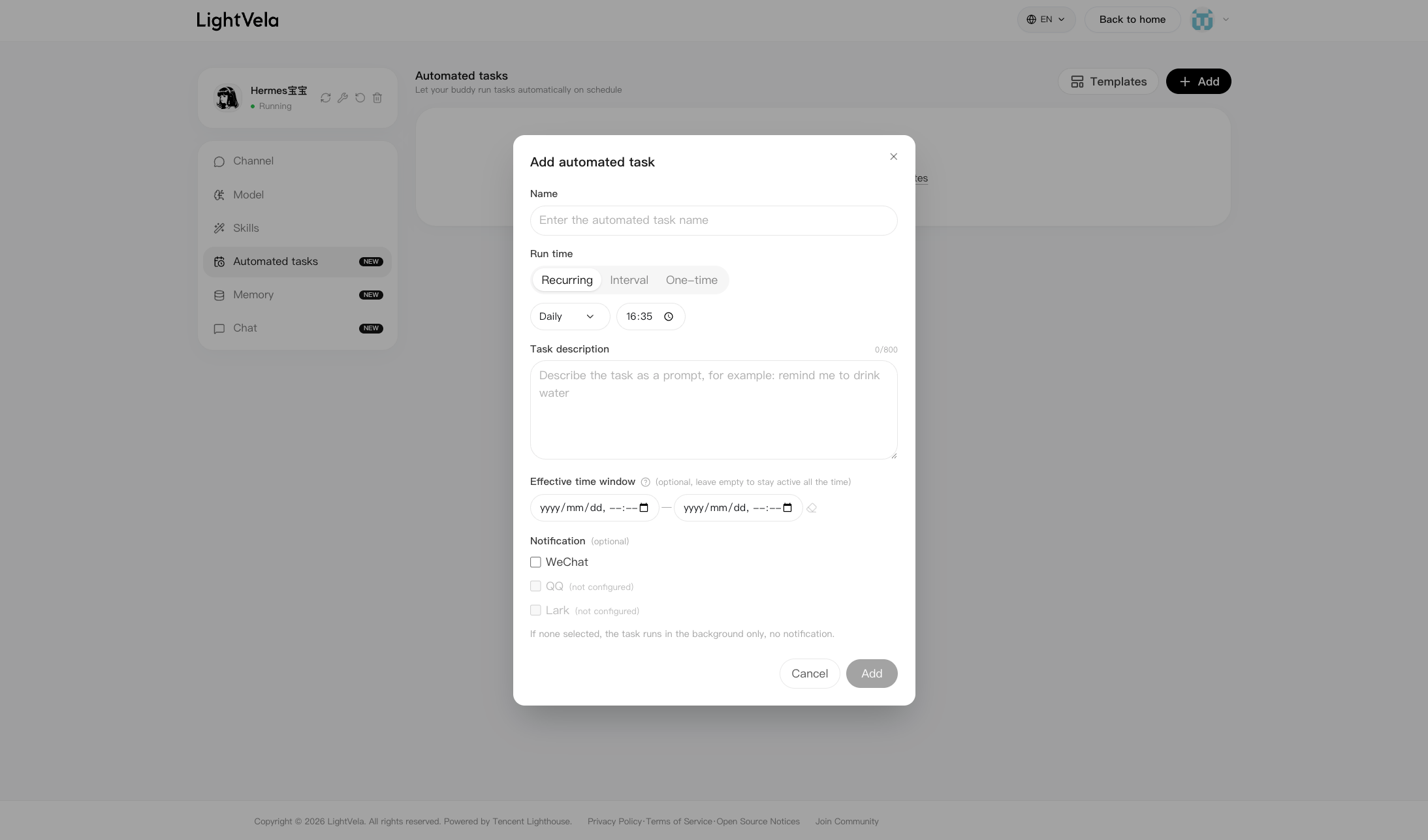
- Name: A name for the automation plan.
- Schedule: The execution cadence (pick one of fixed weekdays, fixed interval, or run once).
- Task instructions: The prompt the agent uses to carry out the automation. Examples:
- Summarize unread emails every day at 21:00
- Archive subscription emails older than 30 days
- Remind me to water the plants every Sunday
- Effective window: An optional date/time range during which the task is allowed to run (leave empty to run continuously).
- Notification: Optional checkboxes — pick the channels that should receive notifications when the task runs.
---
Built-in task templates
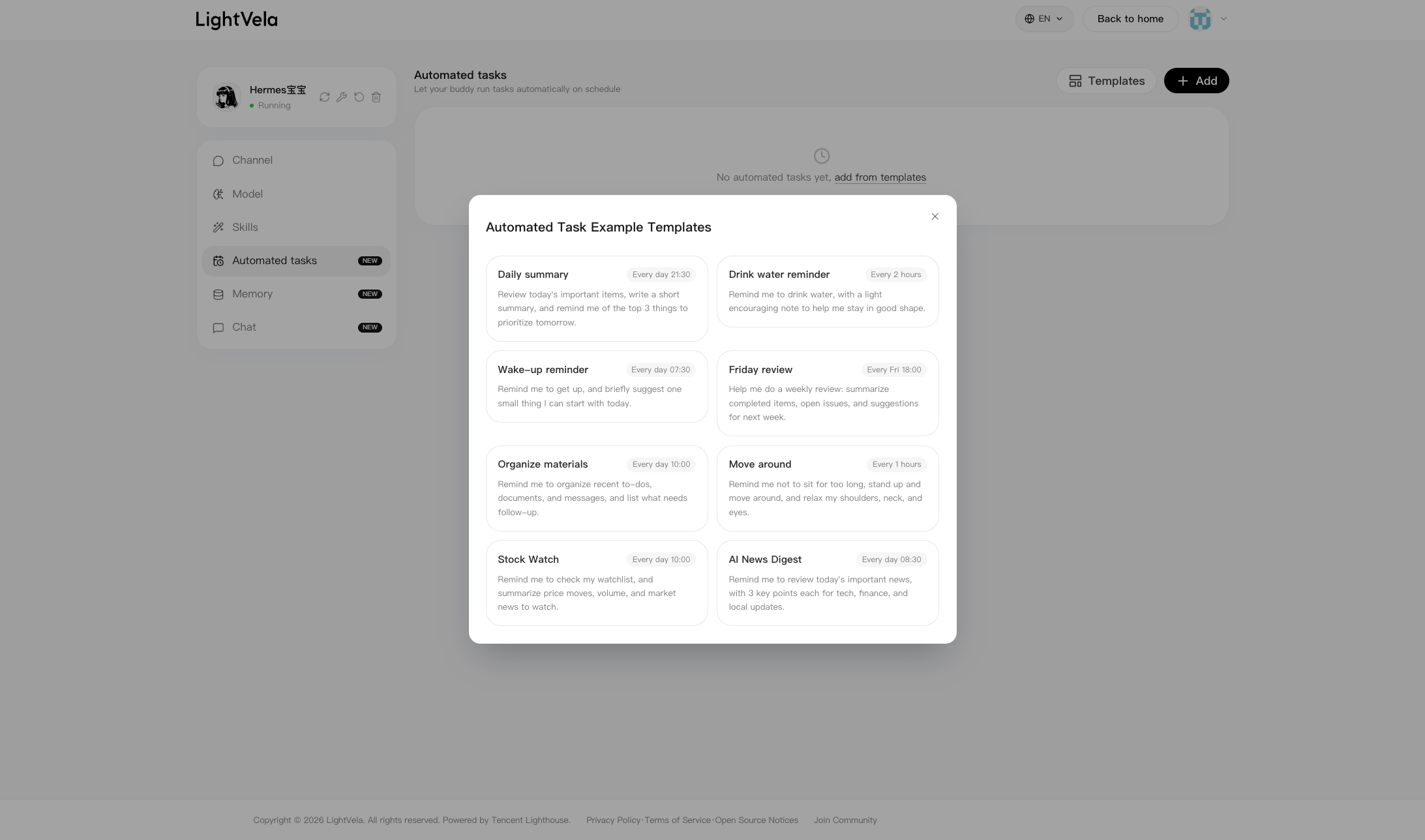
If you are not sure what to automate, click "Templates" to choose from ready-made automation plans.
---
Managing automations
Once a task is created, the "Automations" page lists all the tasks you've enabled.
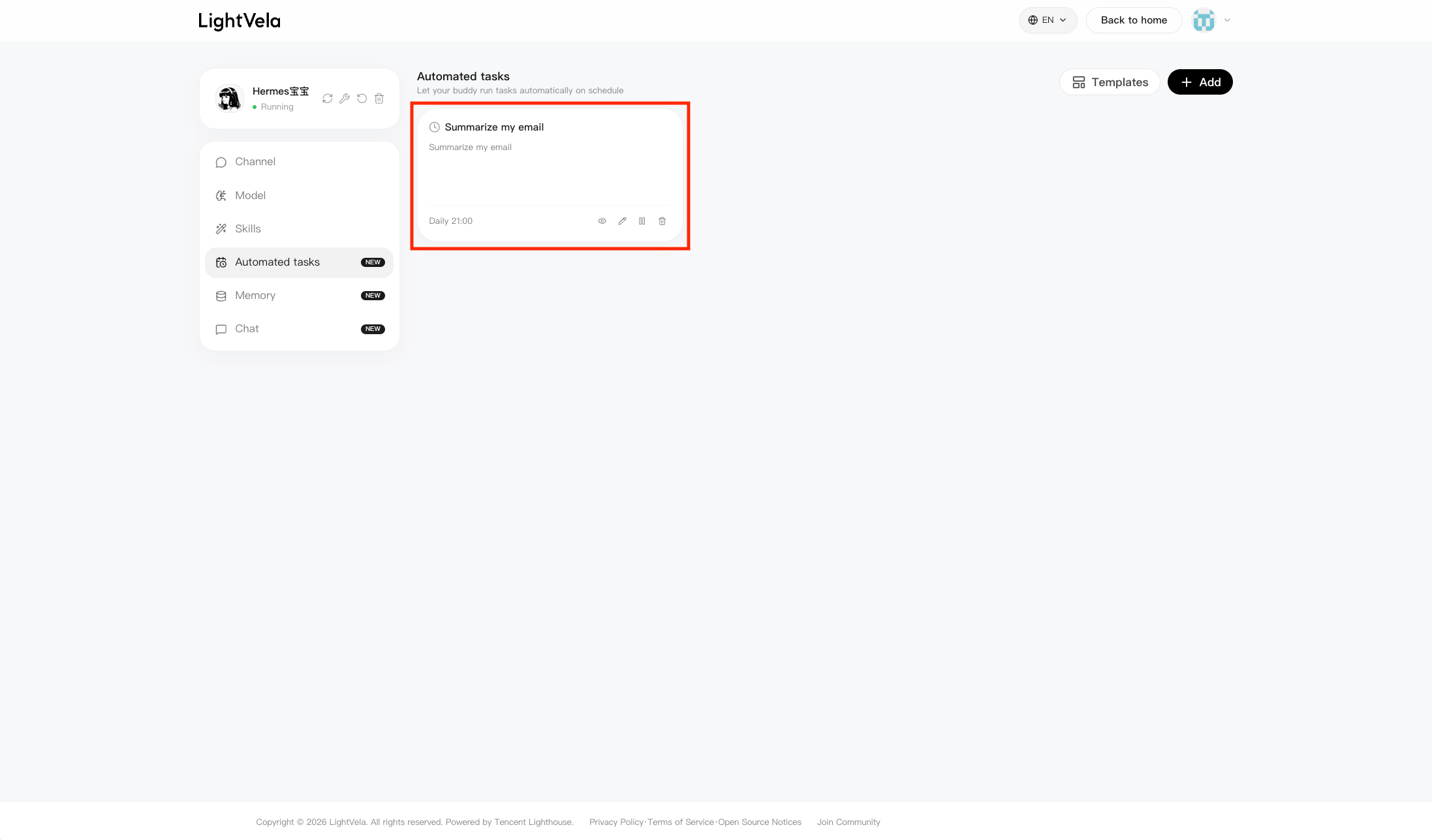
From this page you can inspect a task's details, edit it, pause it, or delete it as needed.

---