Configure Channel - QQ
The QQ channel requires creating a bot on the QQ Open Platform, then filling the resulting AppID and AppSecret into LightVela. The whole process takes about 5–10 minutes.
This page covers
- Registering and creating a bot on the QQ Open Platform
- Obtaining the AppID and AppSecret
- Filling the credentials into LightVela to complete integration
- Chatting with Hermes in QQ
> 💡 Prerequisites > > - A QQ account (to act as the bot administrator) > > - Complete model configuration (or use the 100 trial credits included in the Launch plan) >
---
Steps
1. Enter the console
Sign in to LightVela, click "My Hermes" in the upper-right corner to enter the console, and find the "Channel" button.
2. Select the QQ channel
Click the dropdown and select "QQ". The QQ channel introduction appears below.
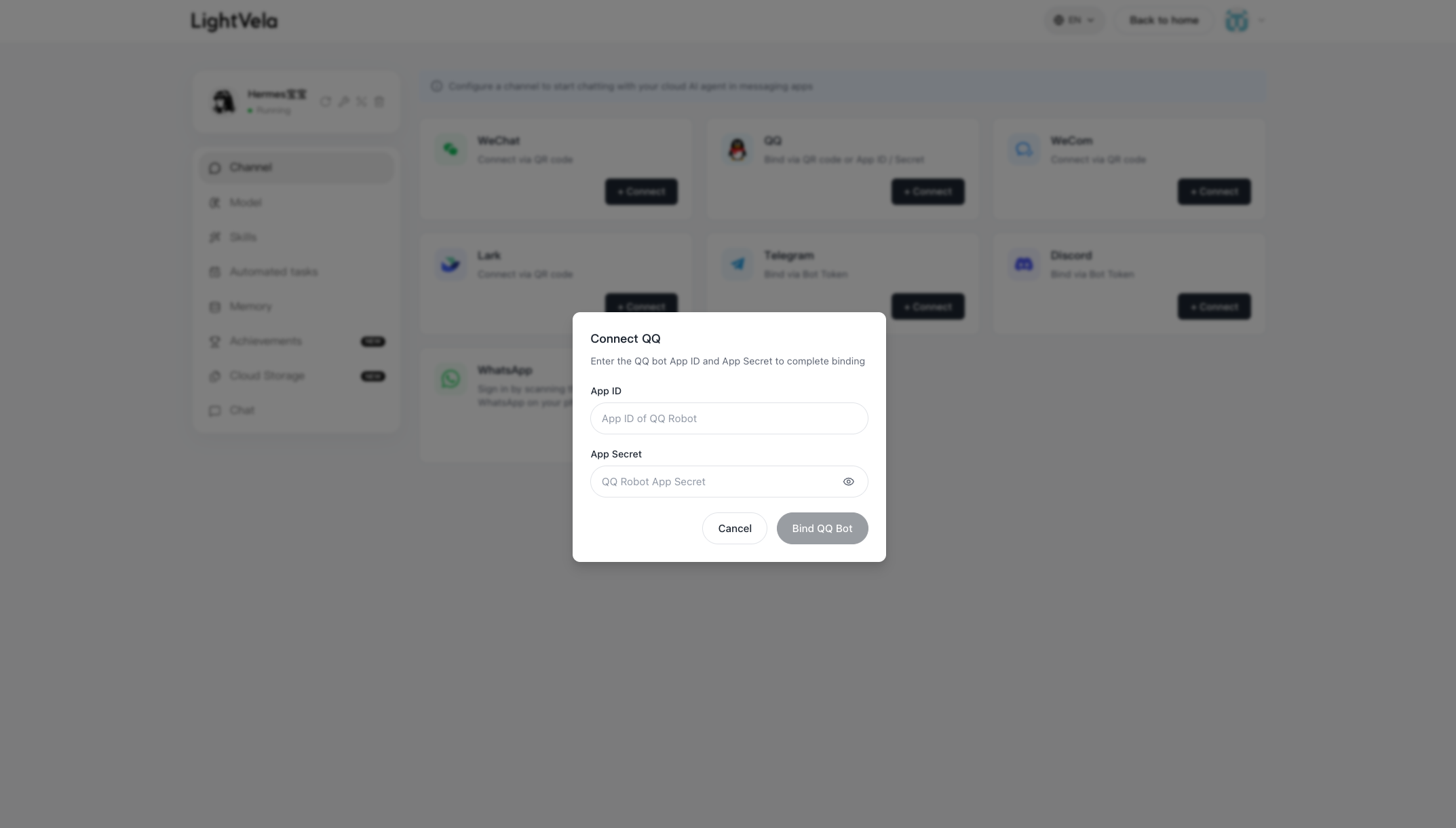
3. Register on the QQ Open Platform
Visit the QQ Open Platform and scan the QR code on the page with the QQ mobile app to register / sign in. On first visit, scanning will register automatically and bind the current QQ account to the Open Platform account.
After scanning on the QQ mobile app and choosing Agree, registration is complete and you'll enter the QQ bot configuration page.
4. Create a QQ bot
On the bots page of the QQ Open Platform, click "Create Bot" to create a new QQ bot.
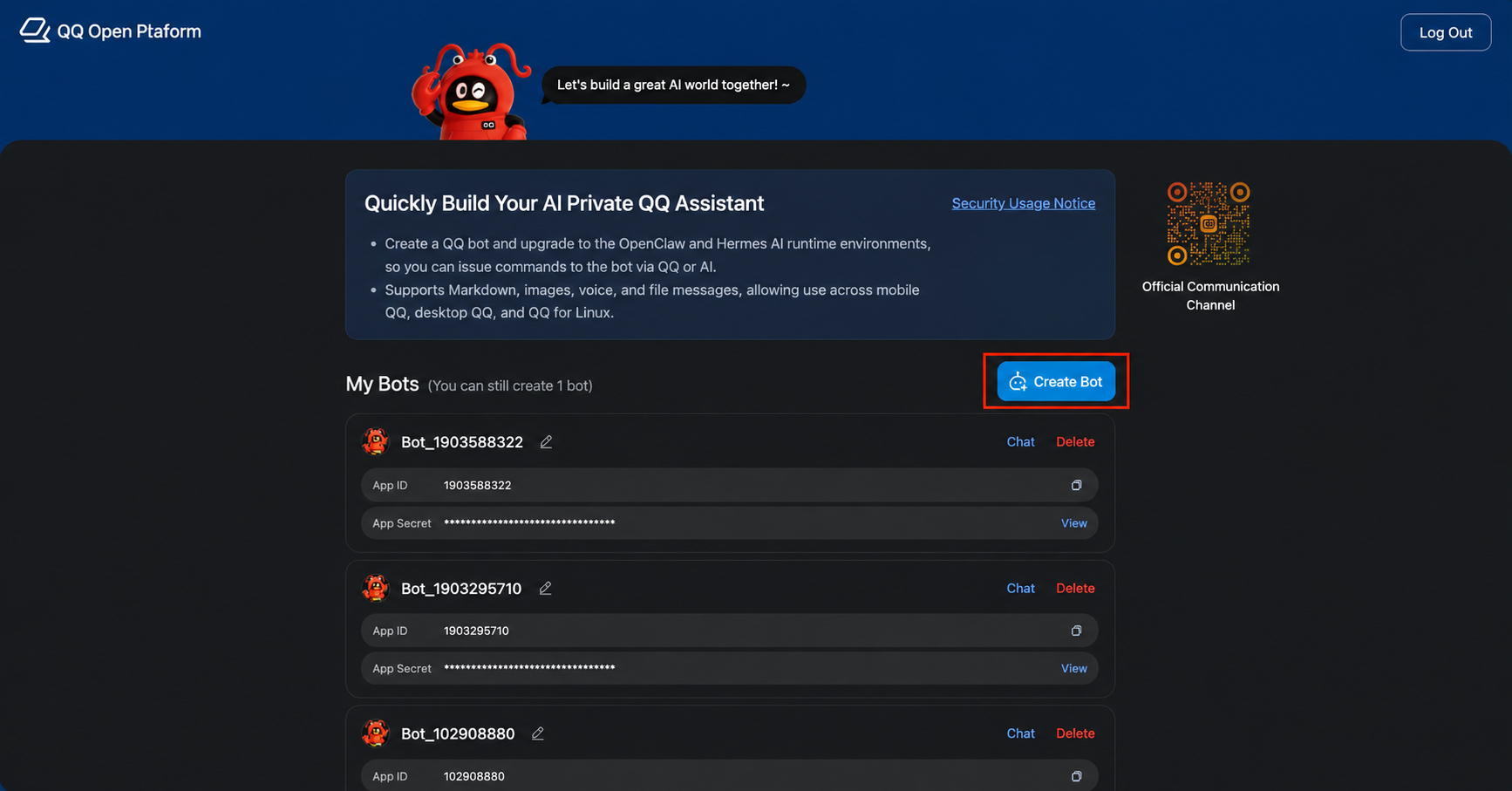
5. Obtain AppID and AppSecret
After the bot is created, locate the AppID and AppSecret on the page. Click the "Copy" button next to each and save them into a local notes file.
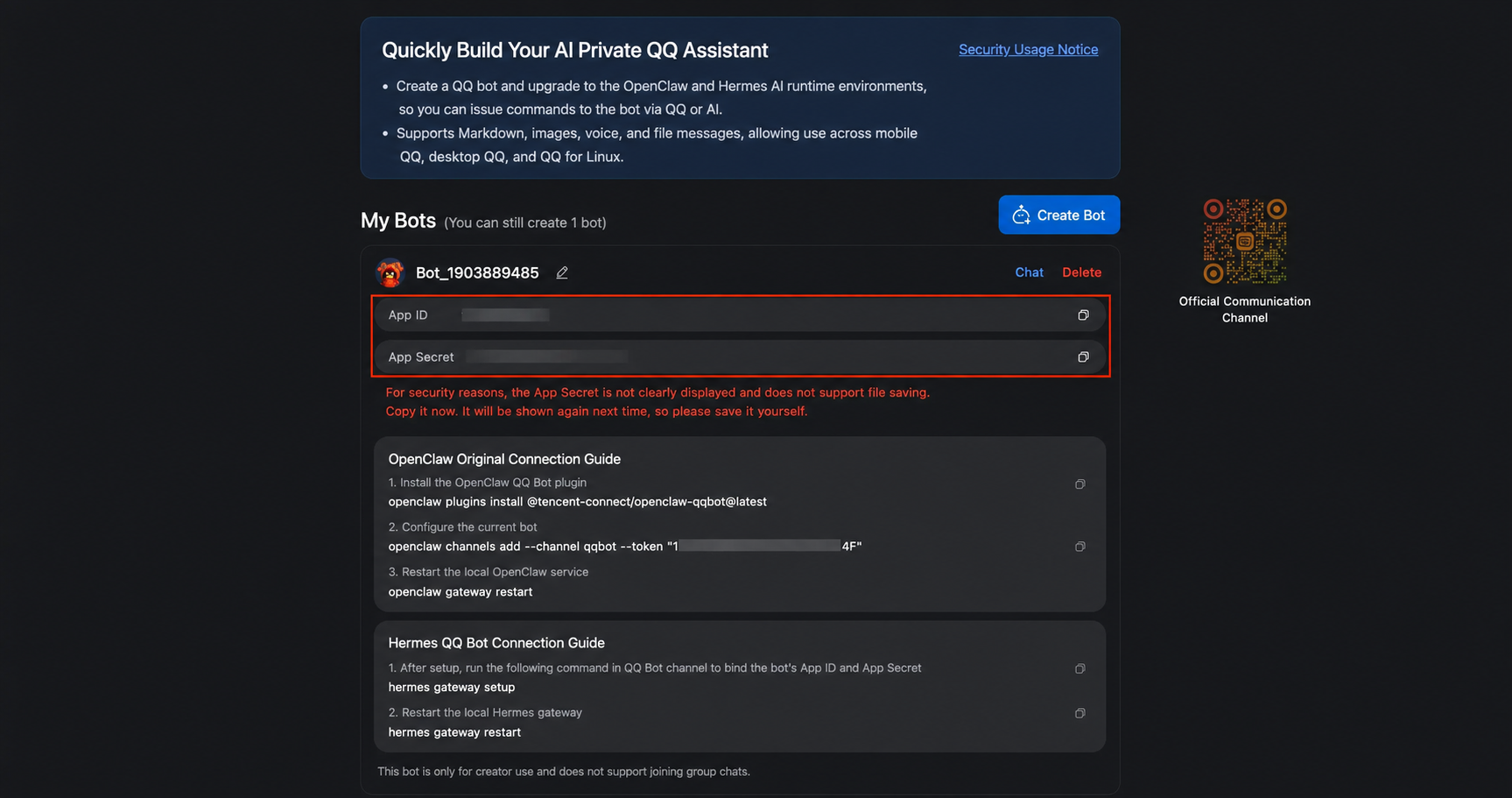
> ⚠️ AppSecret is a sensitive credential > > - For security reasons, the AppSecret cannot be viewed again in plaintext — viewing again forces a reset. Save it immediately when first created. > > - Do not paste it into chat groups, public web pages, or commit it to a Git repository. > > - If leaked, immediately reset it on the QQ Open Platform under "Reset Secret", then refill the new credential into LightVela. >
After creation, QQ automatically adds the bot to your message list and sends a welcome message. At this point, the bot is not yet bound to LightVela; sending a message will return "This bot has gone to Mars, try again later" — this is normal, continue to the next step.
6. Fill in the credentials in LightVela
Back in the console "Channel" card, choose "QQ" from the dropdown, and paste the credentials you just copied:
- AppID: paste the copied AppID
- AppSecret: paste the copied AppSecret
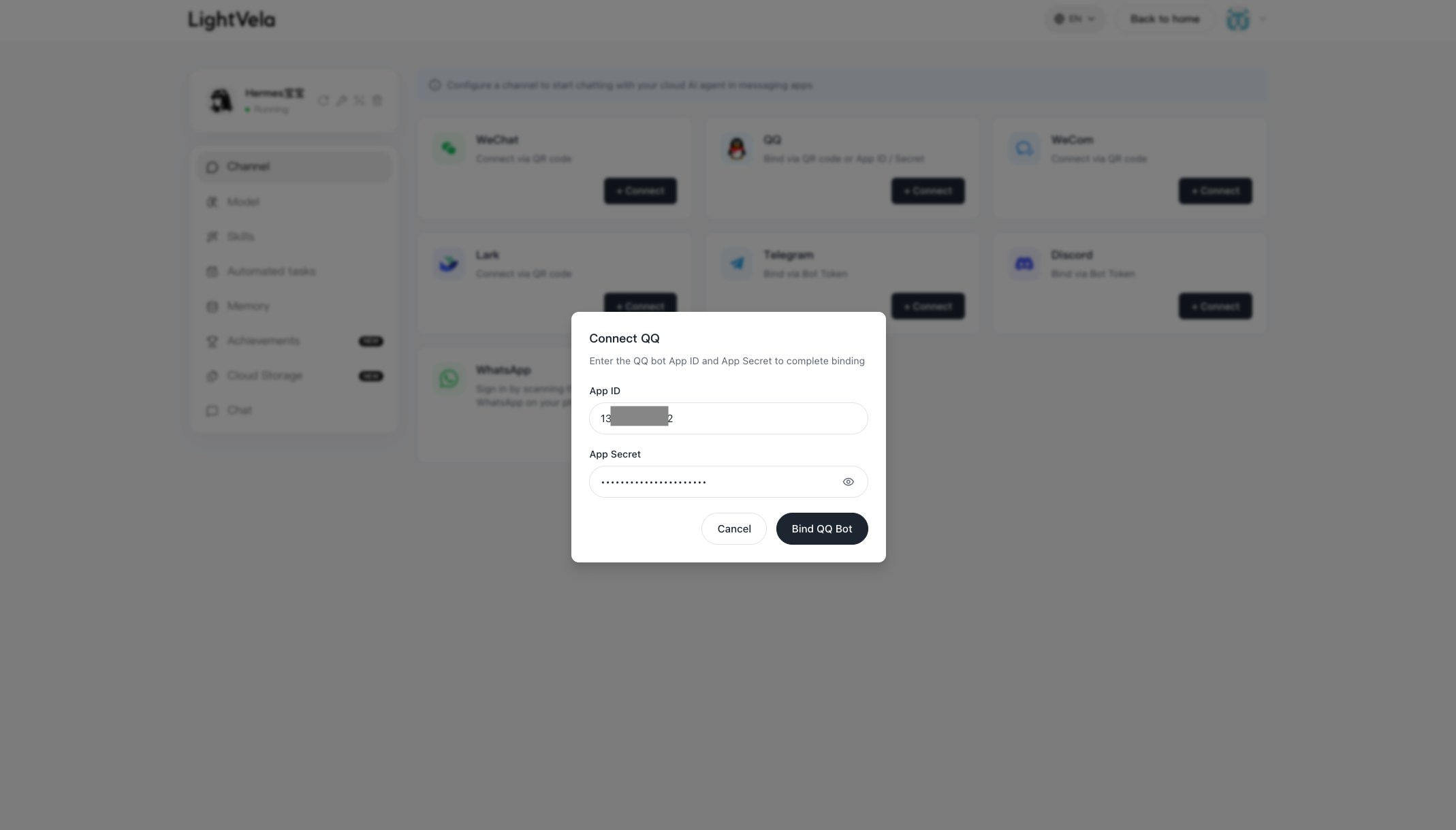
7. Click "Add and Apply"
LightVela uses the credentials above to connect the bot on the QQ Open Platform. After a few dozen seconds, the page shows "Saved successfully", and a "QQ" entry appears in the "Connected Channels" list.
8. Find Hermes in QQ
Open QQ, find the bot you just created, and send a test message:
HelloYou'll receive a Hermes reply within seconds.
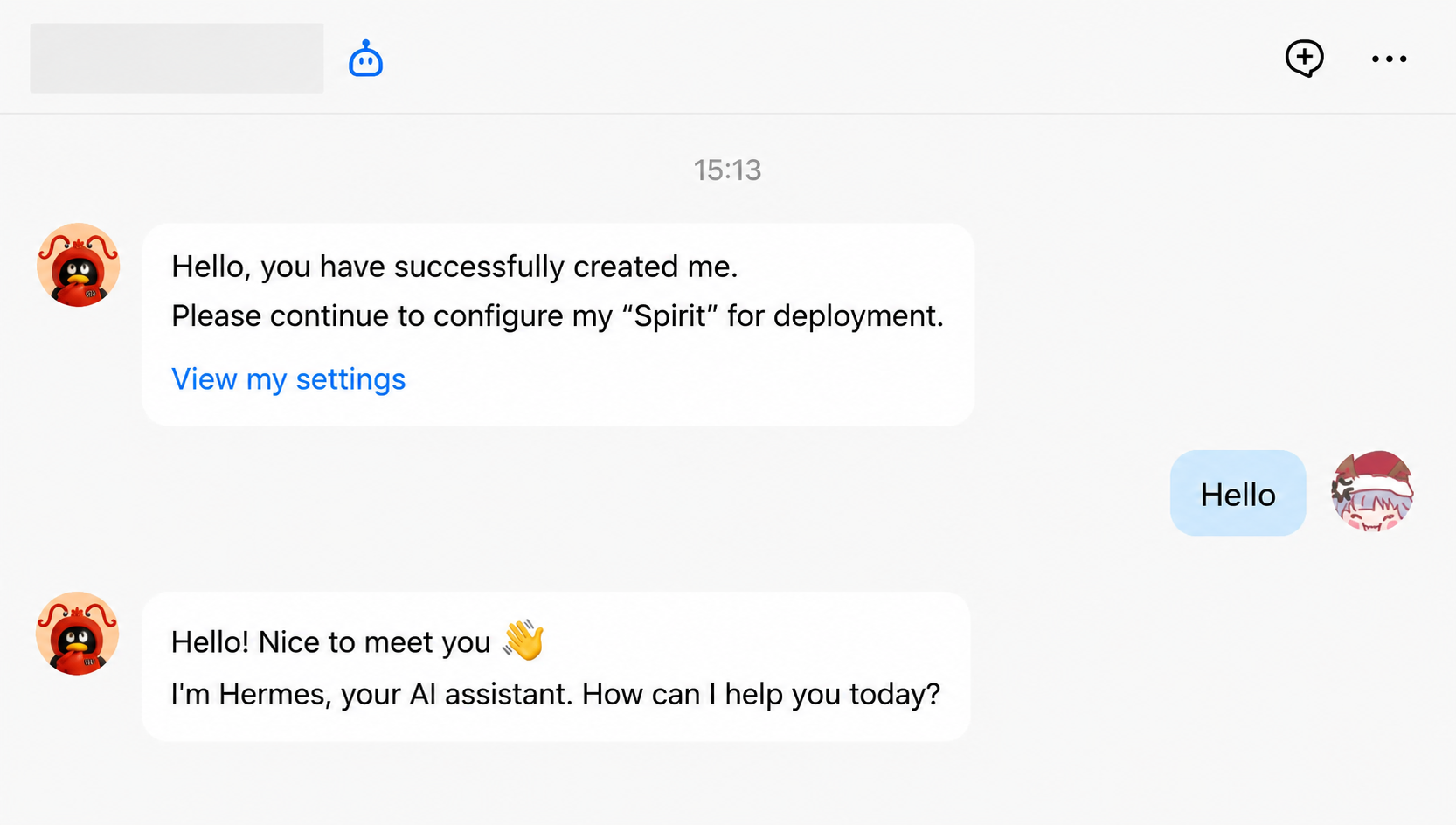
> ⚠️ Group chats are not yet recommended > > The current version does not recommend adding the QQ bot to group chats for multi-party conversation.
Success state
- The bot has been created on the QQ Open Platform
- A "QQ" entry appears in the console's "Connected Channels" list
- The bot in QQ replies properly using AI
---
Supported message types
After integration, the QQ bot supports more than basic text. The full list:
| QQ bot — supported message types and features | Supported |
|---|---|
| Receive text messages | ✅ Yes |
| Receive images | ✅ Yes |
| Receive files | ✅ Yes |
| Receive voice messages | ✅ Yes |
| Reply with text messages | ✅ Yes |
| Reply with images | ✅ Yes |
| Reply with files | ✅ Yes |
| Reply content supports Markdown | ✅ Yes |
| Send messages proactively (e.g. scheduled reminders) | ✅ Yes |
| Quote historical messages | ❌ Not yet |
> ℹ️ Actual capability depends on the model > > The table above only reflects what the QQ bot can receive and reply with at the channel layer. Whether tasks such as image / file processing actually work depends on whether the underlying LLM connected to Hermes supports those capabilities.
---
FAQ
| Symptom | Possible cause | Resolution |
|---|---|---|
| Bot replies "My 'soul' is offline, please check your host service deployment" | AppID / AppSecret not configured in LightVela, or credentials are wrong | Recopy the parameters from the QQ Open Platform, ensure no leading / trailing spaces, then refill in LightVela |
| Bot replies "This bot has gone to Mars, try again later" | The QQ bot is created but not yet bound to LightVela | Follow this page to fill in AppID / AppSecret |
| Bot still doesn't reply after all configuration | Model not configured or trial credits exhausted | Check the "Current Model" status on the "1. Model" card |
| Cannot find the AppSecret | The AppSecret is only visible at creation time | Click "Reset Secret" on the QQ Open Platform to generate a new value, then refill in LightVela |
| AppSecret leaked | — | Go to the QQ Open Platform "Reset Secret", and refill the new AppSecret in LightVela |
| QR code expired | Not scanned within the validity window | Close the dialog and click "Authorize Access" again |
---
Channel notes
- Message types: Text, images, files, voice, and more — see "Supported message types" above
- Group chat support: The current version does not recommend adding the bot to QQ group chats
- Credential management: The AppSecret is only visible in plaintext at creation time; if lost or leaked, it must be reset
---
Next steps
- Configure Channel - WeCom — Enterprise internal collaboration and office scenarios
- Configure Channel - Lark — Office scenarios with rich text and group chat
- Configure Skills — Extend Hermes capabilities