
Configuration Overview
Summary
All LightVela configuration lives in the "My Hermes" console, which you open from the top-right corner after signing in. Bot tabs for the current Hermes Agent sit at the top, and below them are three configuration buttons: Models (choose a Model Coding Plan, Model API, or a custom OpenAI-compatible endpoint), Channels (entry points for each messaging platform — some connect by QR code, others need a token or app ID), and Skills (install reusable capability packs). Beyond those three, the console also offers Chat, Tasks, memory management, cloud storage, model switching, and a diagnostics center. Once the three basics are set, your Bot is ready to talk in its messaging channels.
All LightVela configuration is centralized in the "My Hermes" console and consists of three configuration buttons:
-
Models
-
Channels
-
Skills
This page introduces the overall console structure and the function of each button. For detailed operations, see the corresponding subpages.
This page covers
-
How to enter the console
-
Bot switcher and selected Bot information
-
Functions and entry points of the three configuration buttons
-
Success state after configuration
-
Common operations such as managing Bots, switching models, and connecting multiple channels
Enter the console
After signing in, click "My Hermes" in the upper-right corner to enter the console. The top of the page provides a "Back to Home" button.
Bots and selected Bot information
The top of the console contains Bot tabs for the current Hermes Agent. The first tab is the main Bot; each additional tab is a separate Bot profile. Your plan determines the total Bot limit, including the main Bot. During the staged international rollout, the creation entry is not shown by default. See Manage Bots for creation methods and inheritance rules.
After selecting a Bot, its basic information is shown below:
-
Avatar
-
Name (click the name or pencil icon to edit, then press Enter to save)
-
Status (● Running / ● Unknown)
-
Creation time
-
Delete button (trash icon on the right)
Three configuration buttons
The three buttons are arranged from left to right. The recommended configuration order is 1 → 2 → 3.
1. Channels
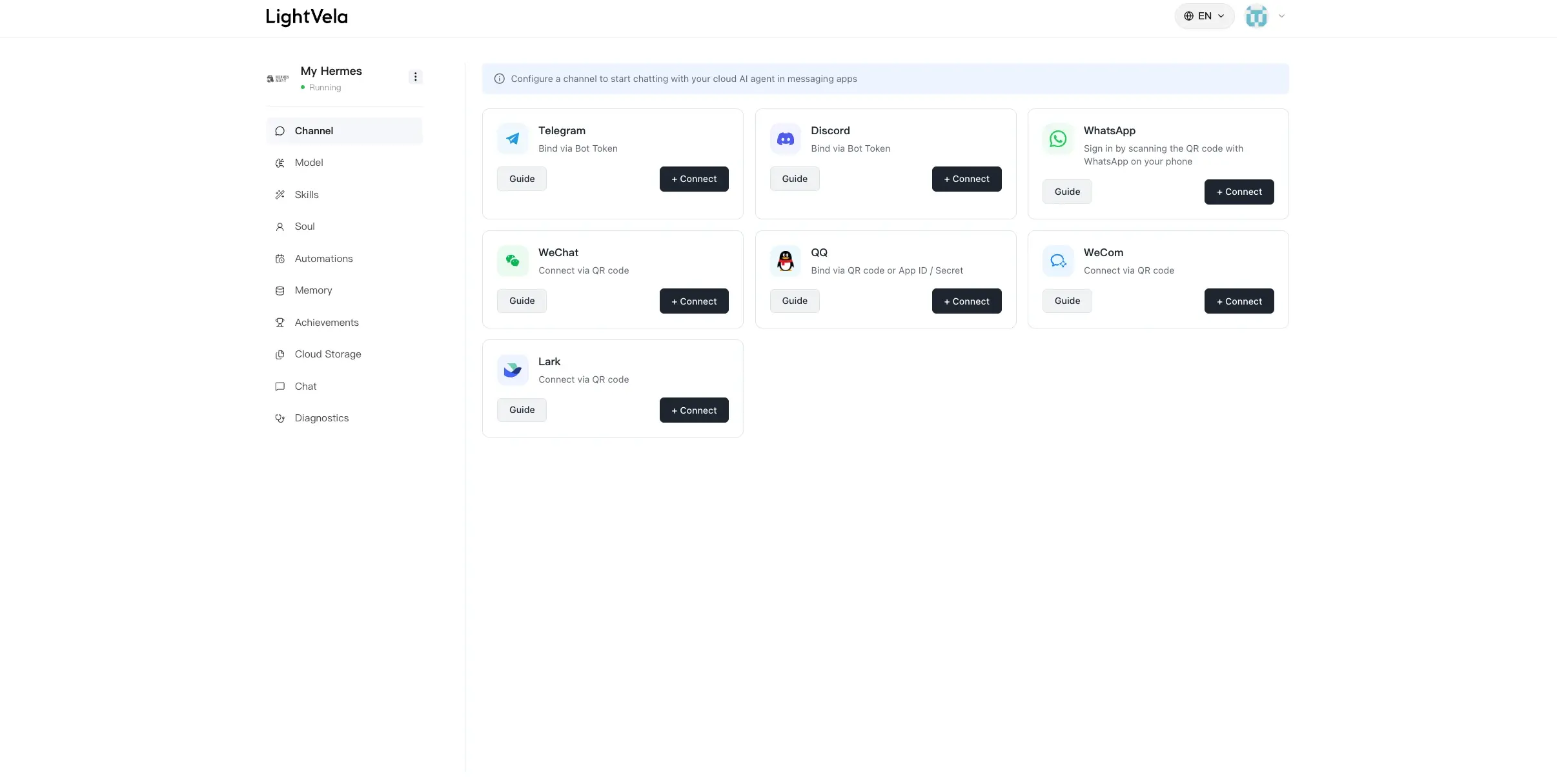
Purpose: Connect Hermes Agent to messaging platforms and provide conversation entry points for users.
Access methods by channel:
| Channel | Access method | Requirement |
|---|---|---|
| QR-code authorization | A phone with WeChat installed | |
| Telegram | Bot Token access | Create a Telegram Bot through BotFather and obtain a Bot Token |
| WhatsApp Business API access | Meta developer account, WhatsApp Business Account, and basic Cloud API setup | |
| Discord | Bot Token access | Create an Application in Discord Developer Portal, add a Bot, and invite it to a server |
| Slack | Bot Token / App Token access | Create a Slack App, enable Socket Mode, and obtain Bot/App tokens |
| AppID / AppSecret access | A QQ account; create a bot on the QQ Open Platform and obtain AppID / AppSecret | |
| WeCom | QR-code authorization | A phone with WeCom installed |
| Lark | QR-code authorization | A phone with Lark installed (or desktop Lark already signed in) |
Button provides: Channel dropdown, "Authorize Access" button, selected channel introduction and "View Details" link, and "Connected channels" list.
For details, see Configure Channel - WeChat / Telegram / WhatsApp / Discord / Slack / QQ / WeCom / Lark.
2. Models
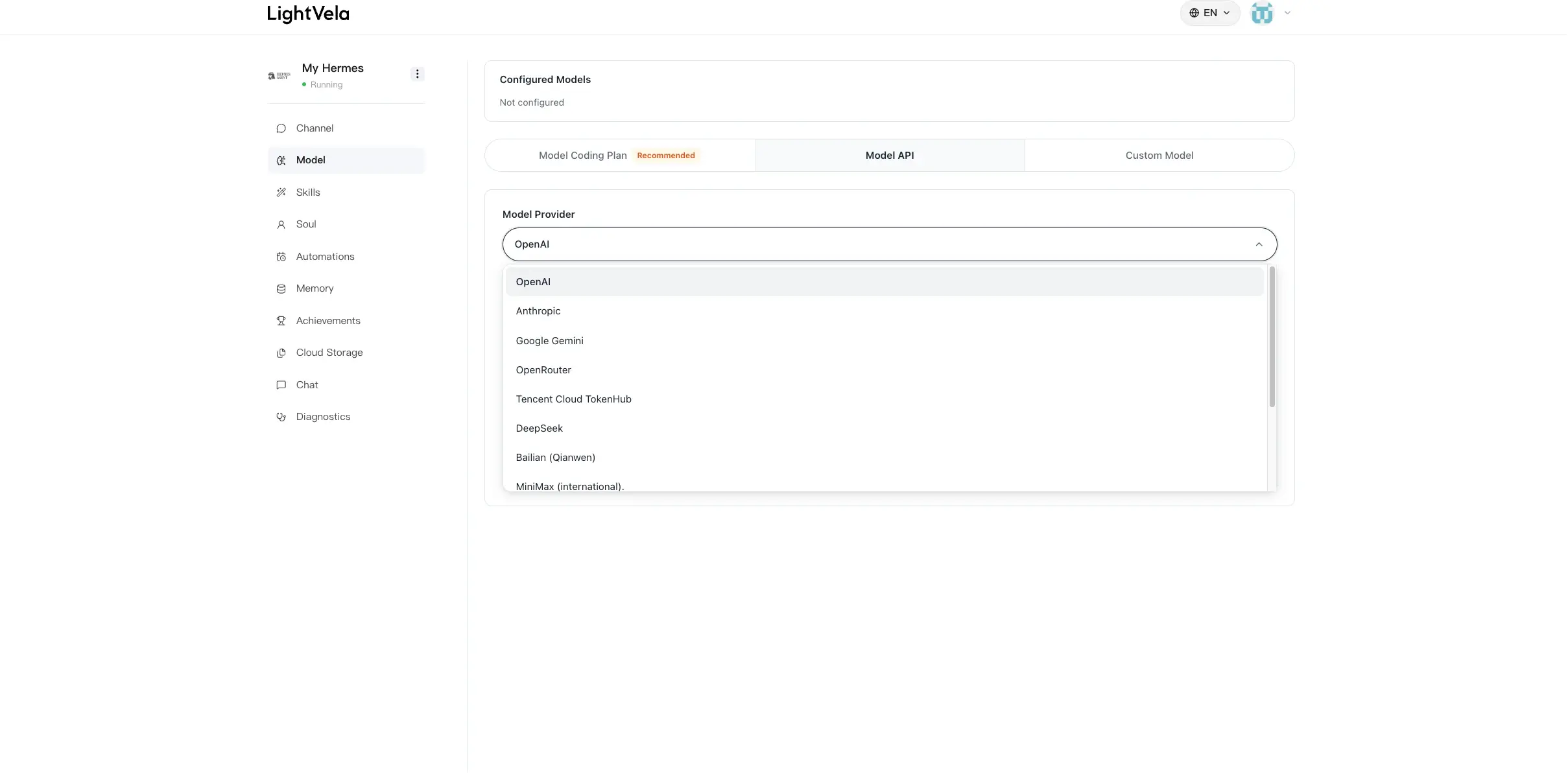
Purpose: Configure a large language model for Hermes Agent. The Launch plan includes 100 trial credits, so you can skip this step at first and configure a model after the credits run out.
Button provides: Source dropdown (Model Coding Plan / Model API / Custom Model), model dropdown, API Key input, provider introduction, link to obtain API Key, and "Current model" list.
For details, see Configure Models.
3. Skills
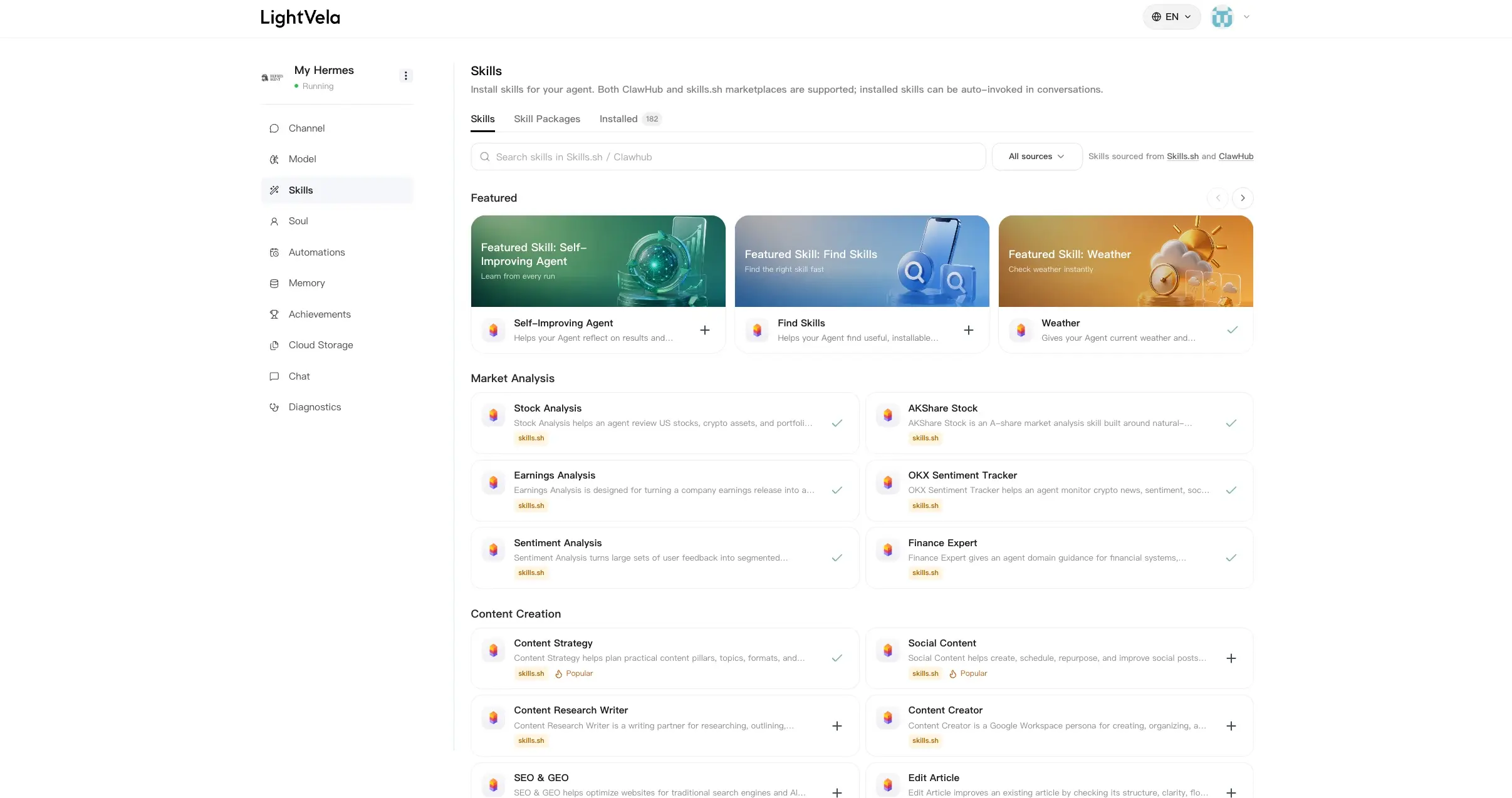
Purpose: Extend Hermes Agent capabilities, such as organizing to-dos, generating daily reports, and searching the web.
Button provides: Skill name search box, "Install Skill" button, "Go to SkillHub" link, and "Installed skills" list. Before installation, confirm the exact skill name in SkillHub.
For details, see Configure Skills.
Success state after configuration
After configuration is complete, the console should show the following state:
-
The "Connected channels" list has at least one record (such as "WeChat")
-
"Current model" is optional; no configuration is required if you use Launch trial credits
-
"Installed skills" can be configured as needed and may be empty
Once "Connected channels" has at least one record, you can find the bot in the corresponding messaging platform and start a conversation. Hermes Agent will generate replies using the default model or Launch trial credits.
Common operations
Switch models
In the "Model" button, choose the source and model again, enter the API Key, and click "Add as default". The new configuration overwrites the previous one. Switching models does not affect conversation memory.
Connect multiple channels
In the "Channel" button, switch dropdown options one by one and click "Authorize Access". Multiple channels connected to the same Bot share that Bot's memory and behavior.
Manage multiple Bots
Use the Bot tabs to switch between profiles. When the creation entry is available, you can copy the current or main Bot, or use Basic setup. See Manage Bots for the inheritance and deletion rules.
Next steps
Detailed configuration for each module:
-
Manage Bots — Create, copy, switch, rename, and delete Bots
-
Configure Models — Model sources, API Key acquisition, and selection guidance
-
Configure Channel - WeChat / Telegram / WhatsApp / Discord / Slack / QQ / WeCom / Lark
-
Configure Skills — SkillHub usage and skill installation
Related references:
Last updated 2026-09-21