
Cloud Storage
Summary
Cloud storage is your Hermes Agent file workspace. You can keep task materials in one place, upload and organize files, or download what you need locally, all without leaving LightVela. Capacity comes from your plan — Launch includes 50 GB of dedicated cloud storage and Cruise offers more. Files the agent reads and writes while running tasks live here too, which makes it both your document library and the agent working directory.
Cloud Storage is the file workspace for your Hermes Agent. Use it to keep the files an agent needs in one place, then upload, organize, download, or remove them from the Agent console without leaving LightVela.
Cloud Storage follows the current Agent instance’s directories and permissions. Multiple Bots share instance resources; switching Bots does not select a separate cloud disk. Confirm the instance and directory before changing files. Separate Bot configuration, persona and memory do not imply independently isolated disks.
This page covers
- Opening your Agent's Cloud Storage
- Uploading, creating, and organizing files and folders
- Downloading, renaming, and deleting files
- Checking that the workspace is ready for your agent
Good to know: Cloud Storage belongs to the selected Agent. Open the same Agent whenever you want to manage the files it can use.
When to use Cloud Storage
Cloud Storage is useful when an agent needs reference material, working documents, or a tidy place to keep files created during a task. For example, you can upload a project brief before asking the agent to summarize it, or create folders to separate recurring work.
It is different from the agent's saved context. To manage what an agent remembers across conversations, see Memory.
Before you start
- Make sure you can open the Agent you want to work with.
- Prepare the files you want to add. Individual uploads and downloads support files up to 1 GB.
- Decide on a simple folder structure if you are adding several related files.
Open Cloud Storage
- Open Agents and select the Agent whose files you want to manage.
- Open the account menu at the bottom of the left sidebar and choose Cloud Storage. It opens a file-manager dialog for the current Agent context; confirm the selected Agent before changing files. Individual uploads and downloads are limited to 1 GB.
- Wait for the file list to load before starting an upload or a folder action.
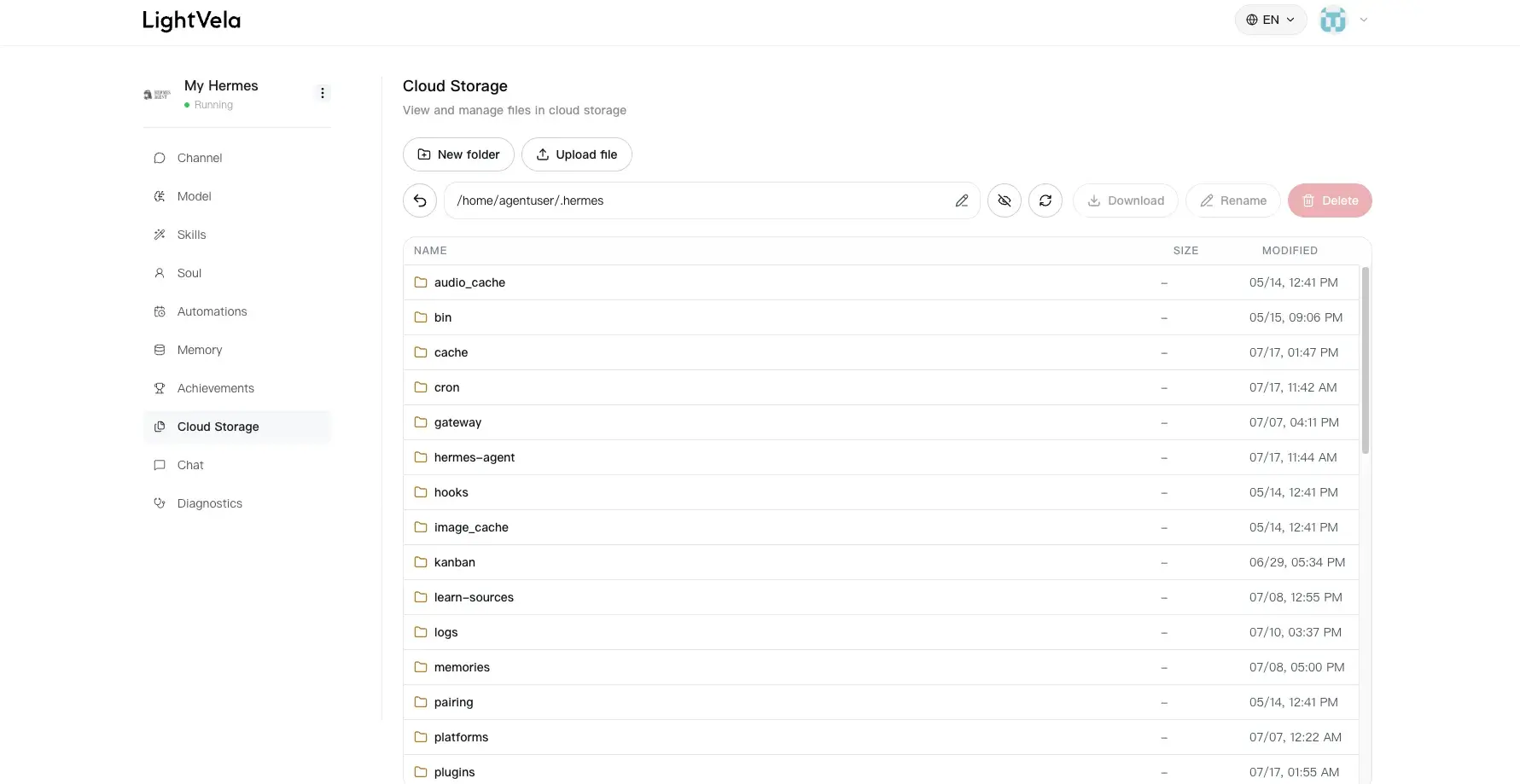
If the list does not load, refresh the page and try again. If the issue continues, use Diagnostics to review the Agent's recent logs before making a larger change.
Upload files and create folders
Upload a file
- Select Upload.
- Choose one or more files from your computer.
- Keep the page open until the upload finishes, then confirm that the file appears in the current folder.
Use clear names so that both you and the agent can recognize the file later. If a file is too large, reduce it below 1 GB or split it before uploading.
Create a folder or file
- In the folder where you want the new item, select New folder or New file.
- Enter a descriptive name.
- Confirm the action, then open the new item to continue working.
A small structure is usually enough: one folder for source material, one for work in progress, and one for finished files. Avoid deeply nested folders unless they genuinely make the project easier to navigate.
Manage existing files
Select a file or folder to use the actions available in the file list:
- Open a folder to browse its contents.
- Download a file when you need a local copy.
- Rename an item to make its purpose clearer.
- Delete files or folders you no longer need.
Caution: Deleting an item removes it from this Agent's Cloud Storage. Download anything you may need later before deleting it.
If you use tools that create hidden files, turn on the hidden-file view only when you need to inspect them. Keeping that view off makes everyday file management easier.
Verify the workspace
You are ready to use Cloud Storage when:
- the file or folder appears in the expected location;
- you can open or download the file successfully; and
- the folder names make it clear which material belongs to the current task.
You can now return to Chat and tell the Agent what you want to do with the files. For repeatable work, combine the same instructions with Scheduled Tasks or Skills.
FAQ
Why cannot I upload or download a file?
First check that the file is no larger than 1 GB and that your connection is stable. Refresh the Cloud Storage view, then retry the action. If it still fails, collect recent information in Diagnostics.
Can I use one Agent's files with another Agent?
Cloud Storage is managed from the selected Agent's console. Open the Agent you intend to use and add the files there so the workspace stays clear and intentional.
Does deleting a file remove it from my computer?
No. Deleting from Cloud Storage removes the managed copy for that Agent. It does not delete the original file on your computer.
Next steps
- Use Chat to work with the files you have prepared.
- Review Memory when the Agent should retain context, not just files.
- Use Diagnostics if storage actions repeatedly fail.
Last updated 2026-10-19