
Workbench
Summary
My Workbench lets you use an AI Agent to build, deploy, and manage static websites in LightVela. Choose a starter template or describe a website from scratch, then work with the Agent to refine and publish it.
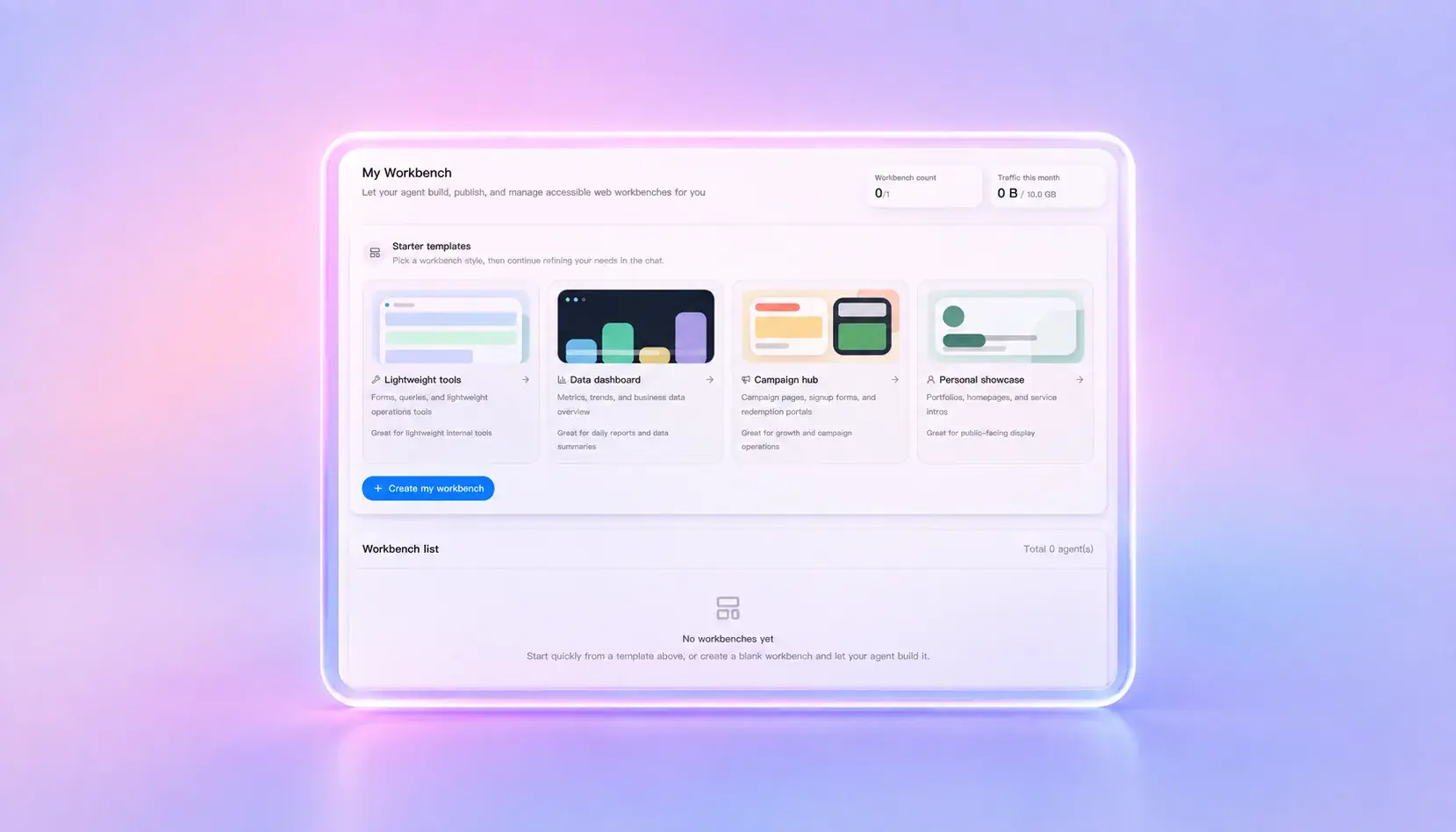
After deployment, you can view the public address, check the current status, and manage your existing workbenches from one place.
Beta notice: My Workbench is a Beta feature, so the generation and deployment workflow may change as the feature evolves.
What My Workbench Does
My Workbench connects your agent chat with a managed static website workflow. You can start your own workbench "worksite" or choose one of the provided templates, interact with the Agent to refine it, and preview your site with your own dedicated link.
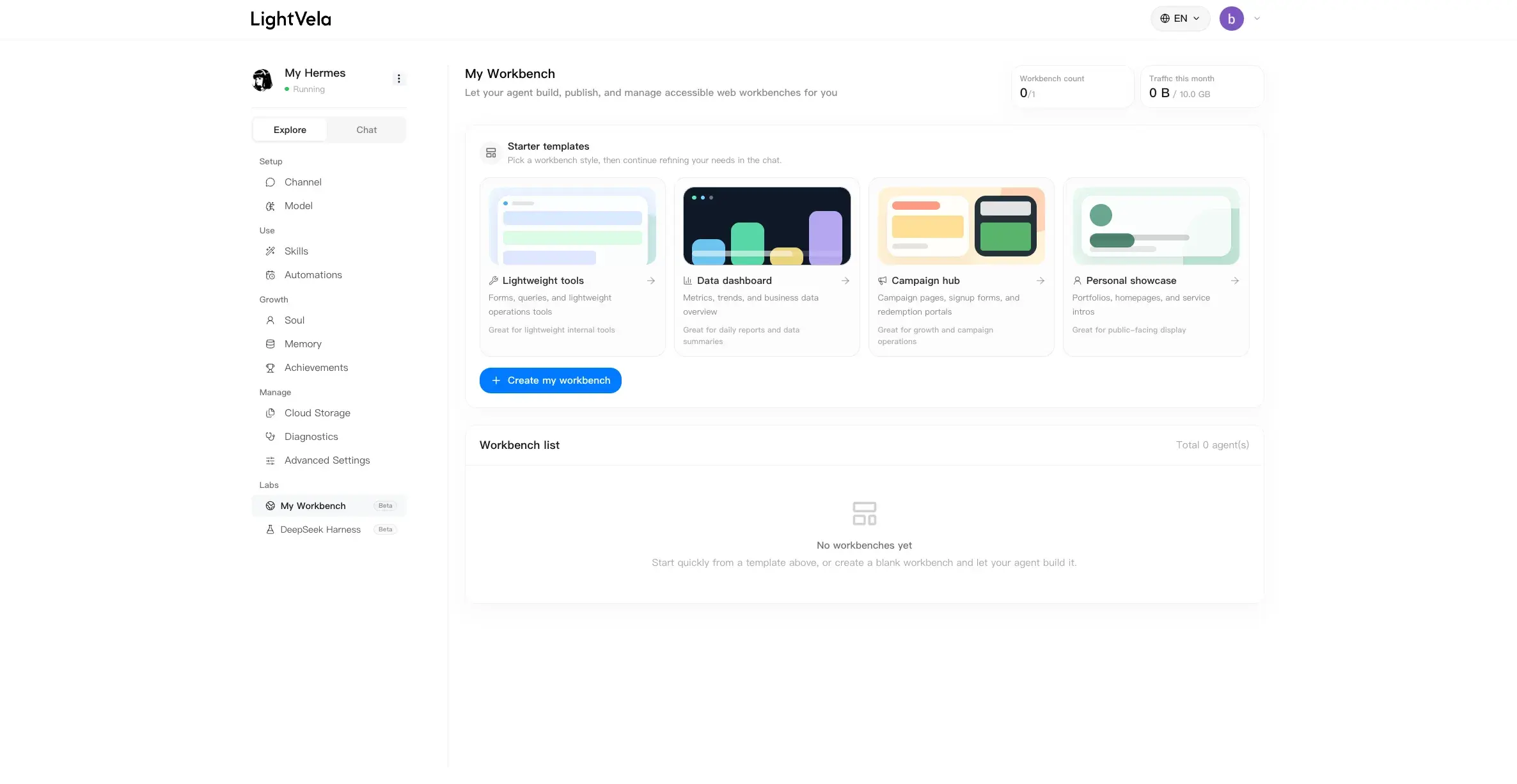
LightVela manages the hosting process, so you do not need to configure a separate hosting server or cloud account.
Open My Workbench
- Open https://lightvela.ai/agents/.
- In the left navigation, open My Workbench.
The Workbench page shows your current usage, available templates, and existing workbenches.
Choose a Starter Template
Starter templates help you begin with a clear direction. You can choose a template based on the type of website you want to build:
- Clean Utility Dashboard: Forms, information lookup, or lightweight internal tools.
- Data Dashboard: Core metrics, trends, business overviews, or daily reports.
- Campaign Landing Page: Activity pages, sign-up pages, or redemption entries.
- Personal Showcase: Portfolios, personal homepages, or service introductions.
Select a template to open Agent chat with a prepared request.
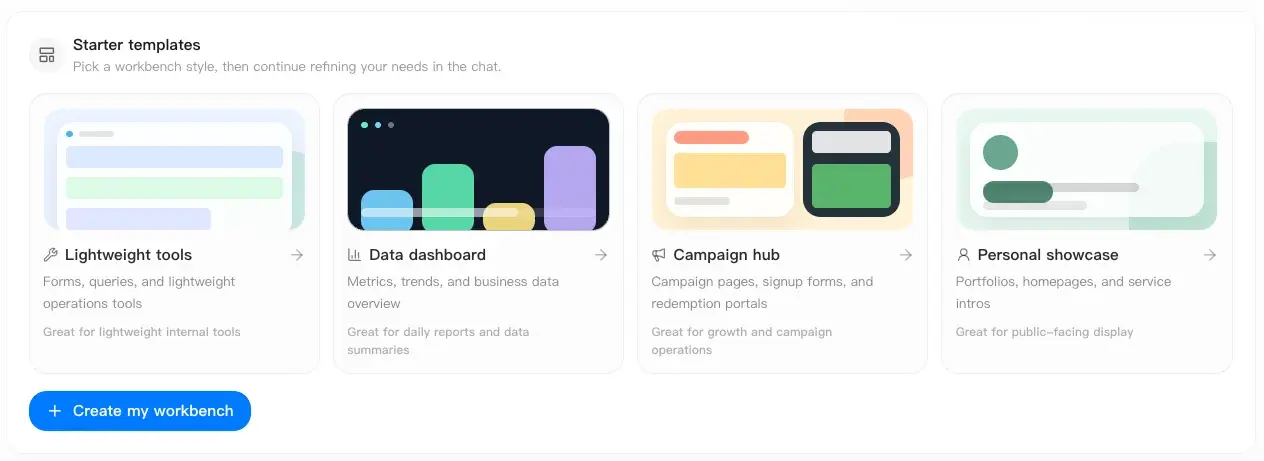
You can also select the blank option and let the Agent clarify the requirements with you step by step.
Create a Workbench with Agent Chat
- Select a starter template, or start with a blank workbench.
- Describe the website's purpose, audience, content, and visual direction.
- Answer the Agent's questions as it clarifies the requirements.
- Review the generated result and ask the Agent to make changes.
- When the website is ready, ask the Agent to publish the latest version.
The current workflow uses React, TypeScript, Tailwind CSS, and common UI libraries for generated websites.
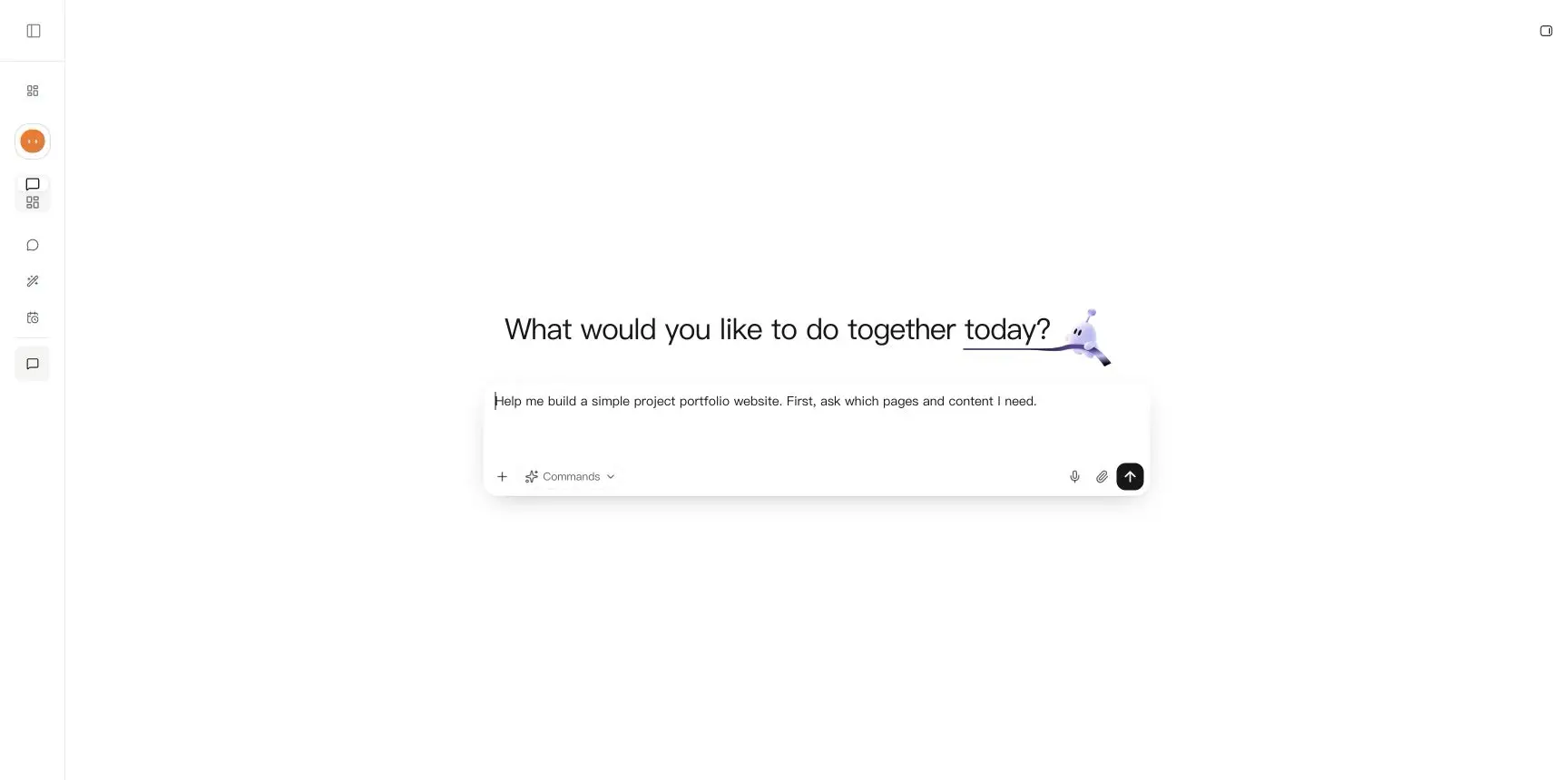
The Agent is also instructed to keep content editable, avoid preset mock business data, and use browser local storage when temporary local data is appropriate.
Check the Workbench Status
Each workbench has a deployment status so you can see whether it is ready to visit.
| Status | Description |
|---|---|
| Building | The website is being generated or prepared. |
| Publishing | The latest version is being published. |
| Online | The website is available at its public address. |
| Update failed | The latest generation or publishing attempt failed. |
| Offline | The website is unavailable or has been removed. |
When a workbench is online and has a public address, select Visit to open it.
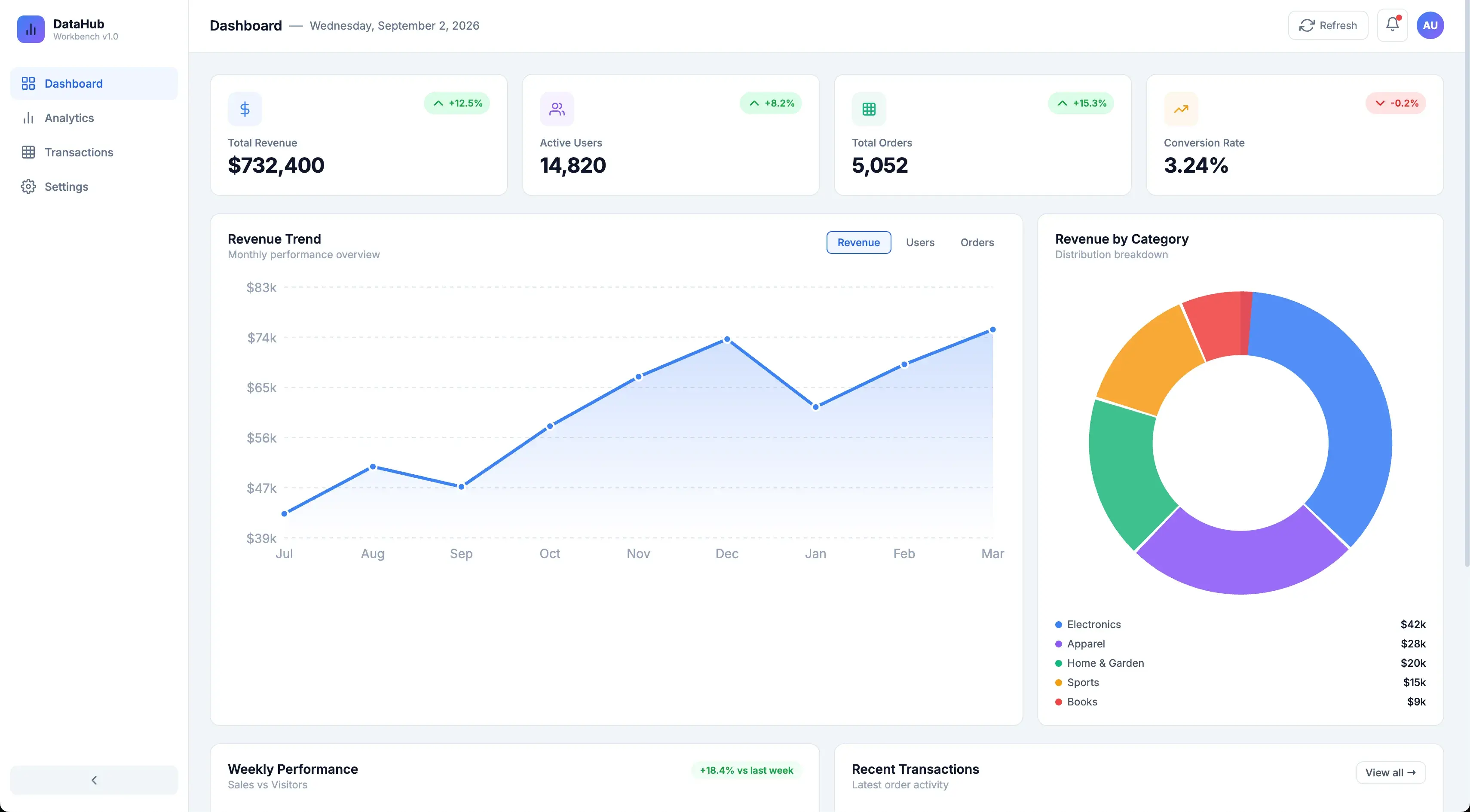
If the workbench is still building or publishing, wait for the process to finish and refresh the page if necessary.
Manage Existing Workbenches
The existing workbench list shows the website name, public address, creation date, and current status.
To update a workbench, return to Agent chat and describe the changes you want. After reviewing the changes, ask the Agent to publish the updated version.
To remove a workbench:
- Find the workbench in the list.
- Select the delete action.
- Confirm the deletion.
Deleting a workbench immediately takes it offline and removes its related files. This action cannot be undone.
Workbench Quota and Hosting Limits
Your Workbench limit depends on your plan.
- Launch plan: Create 1 workbench.
- Higher-tier plans: Create up to 5 workbenches.
If you reach your limit, delete an existing workbench before creating a new one or upgrade your plan.
Common Problems
| Problem | Possible cause | What to do |
|---|---|---|
| The Workbench page asks you to sign in | Your session has expired. | Sign in again and reopen My Workbench. |
| You cannot create another workbench | You may have reached your plan limit. | Check your usage or remove an unused workbench. |
| The status remains Building or Publishing | The deployment is still processing. | Wait briefly, then refresh the page. |
| The Visit action is unavailable | The workbench is not online yet. | Wait until the status changes to Online. |
| The status changes to Update failed | The latest generation or publishing attempt failed. | Review the Agent response, make the required changes, and try again. |
| Website data disappears in another browser | The data was stored in browser local storage. | Use a backend service if the website requires shared or persistent data. |
| A deleted workbench still appears in the list | Deletion is still being processed. | Wait for cleanup to finish and refresh the page. |
Current Boundaries
My Workbench is intended for creating and hosting static websites through Agent chat. It does not provide server-side storage, managed databases, persistent form handling, shared accounts, or arbitrary backend services. Workbench count, traffic, storage, package size, and file count depend on your active plan.
FAQ
What types of websites can I create?
You can create dashboards, internal tools, campaign pages, portfolios, landing pages, and other static front-end websites.
Do I need coding experience?
No. You can describe what you want in natural language and let the Agent guide you through the requirements, generation, and publishing process.
Can I update an existing workbench?
Yes. Return to Agent chat, describe the changes, review the result, and ask the Agent to publish the updated version.
Can my website save data?
Static websites can temporarily save data in the current browser with local storage. LightVela does not provide server-side persistent storage for Workbench websites.
Do I need a separate hosting account?
No. LightVela provides the hosting workflow for your static workbench.
Why is my workbench not immediately available?
Generation and publishing can take some time. Check the current status and wait until it changes to Online before opening the public address.
Last updated 2026-09-02