
DeepSeek Harness
Summary
DeepSeek Harness is a plugin-first AI agent framework that you can install alongside Hermes Agent in LightVela. The Labs page manages installation, status, restart, WebUI access, supported model-provider keys, and a profile with SkillHub, without changing your existing Hermes configuration, channels, skills, or memory. For the model provider setup used by Hermes Agent, see Configure Models.

Beta notice: DeepSeek Harness is an early-access Labs feature. It may receive compatibility-affecting updates as the upstream framework and its plugin ecosystem evolve.
What DeepSeek Harness Adds
DeepSeek Harness (DSH) is an open-source agent harness that gives AI models the environment and tools they need to work on real tasks. In LightVela, DSH runs as a separate managed environment alongside Hermes Agent, where you can work with project files, use tools and skills, manage sessions, and interact with the agent through its WebUI.
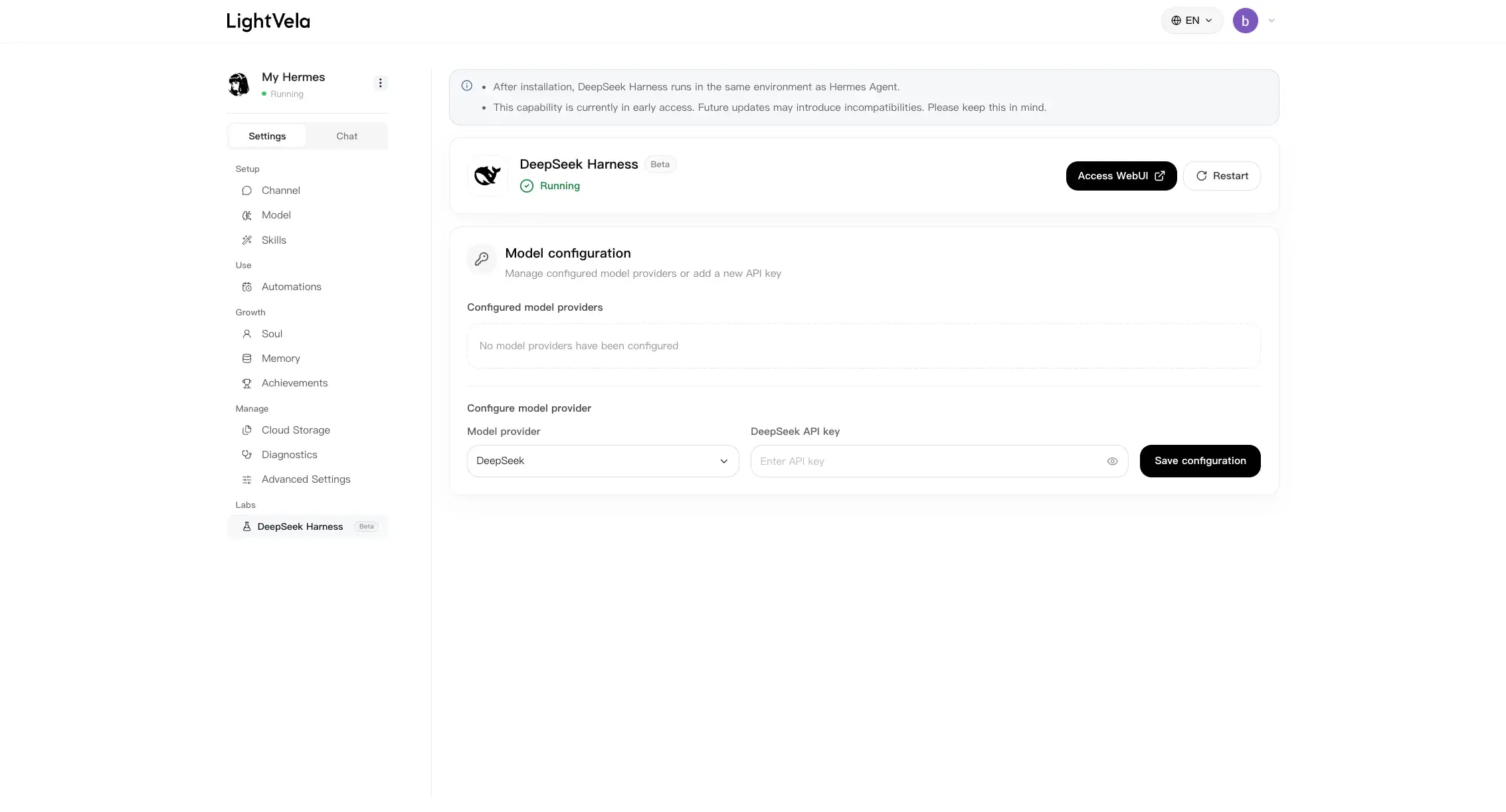
LightVela provides a managed entry point for DSH. You do not need to install packages manually, configure a public server address, or operate the DSH service from a terminal. From the "DeepSeek Harness" page in Labs, you can install the managed runtime, check whether it is healthy, configure an approved model provider, open the instance-specific WebUI, and restart DSH when needed.
Install DeepSeek Harness
- Open LightVela Agents.
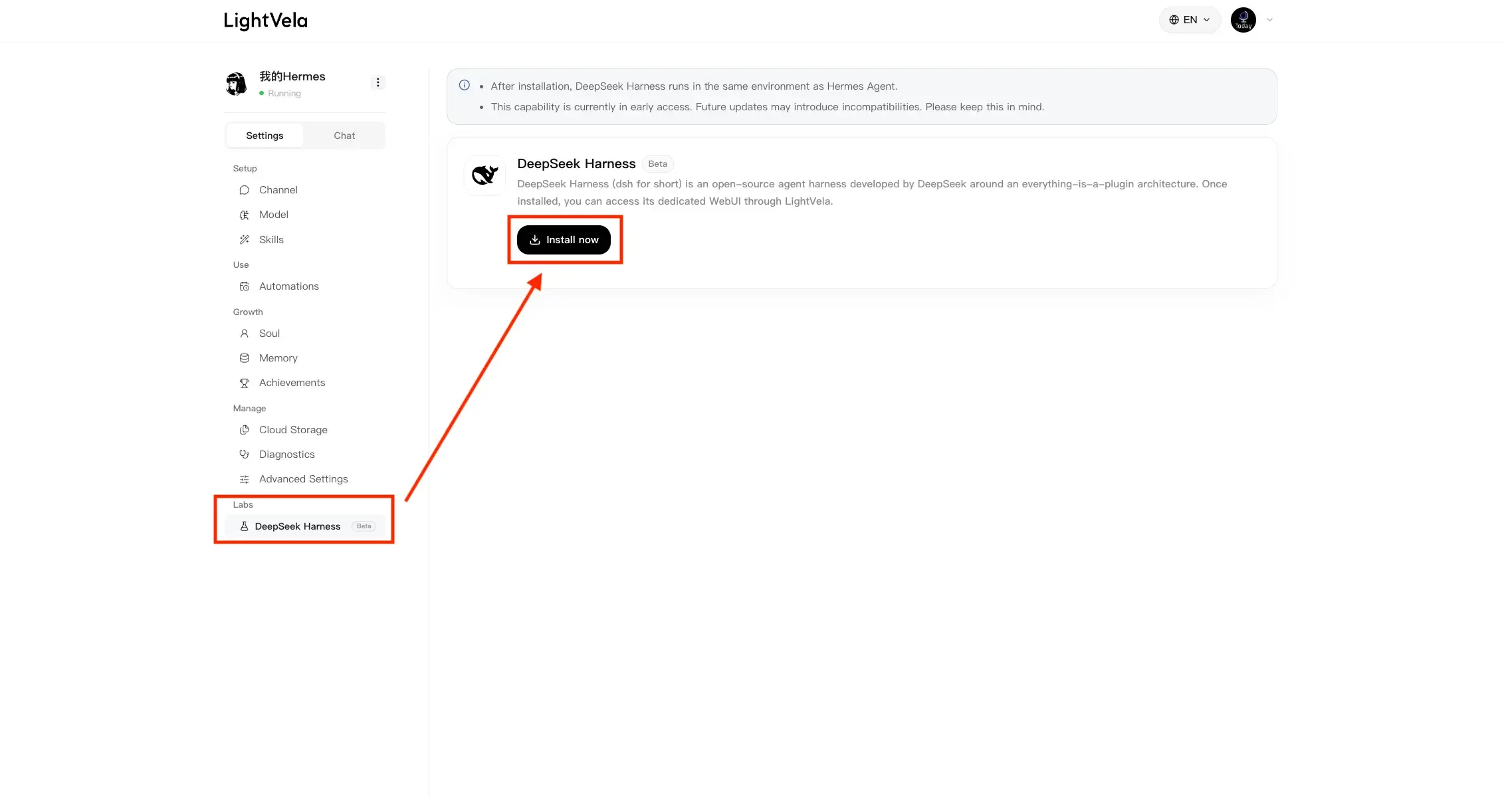
- In the left navigation, go under Labs and choose DeepSeek Harness.
- Review the Beta notice and select Install and try now.
- Keep the page open while the installation runs. A normal installation usually takes about one to three minutes.
Configure a Model Provider
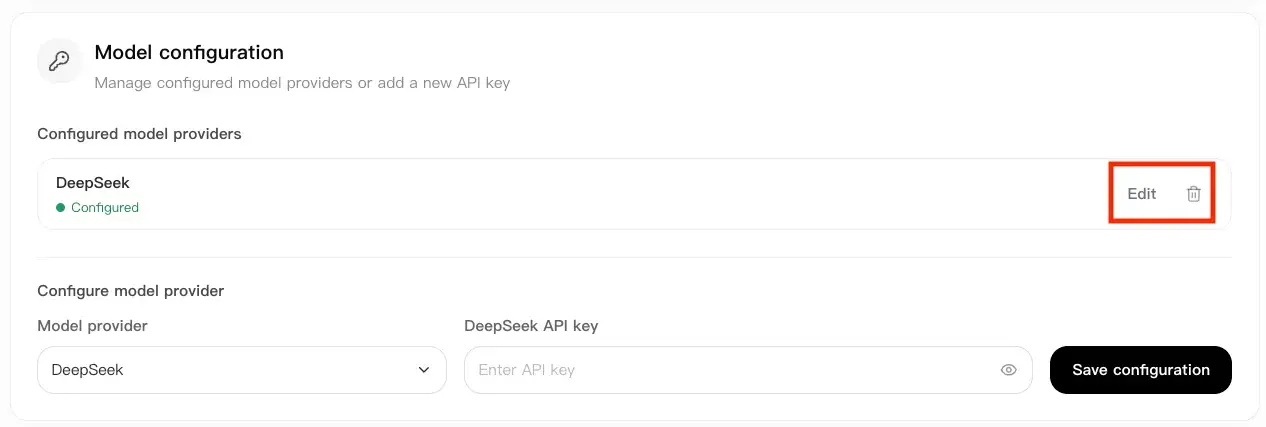
After DeepSeek Harness is installed, the Model Configuration card becomes available below the main DSH card. For the global site, the current approved provider list includes:
- DeepSeek
- MiniMax
- MiniMax China
- Moonshot AI
- Moonshot AI China
- OpenRouter
- Anthropic
- Groq
- OpenAI
To add a provider:
- Select a provider from the provider list.
- Paste its API key into the API Key field.
- Select Save.
- Confirm that the provider appears in the configured-provider list.

To remove a provider, select its delete action and confirm the removal. After removal, you can add the same provider again later with a new API key.
Open the DeepSeek Harness WebUI
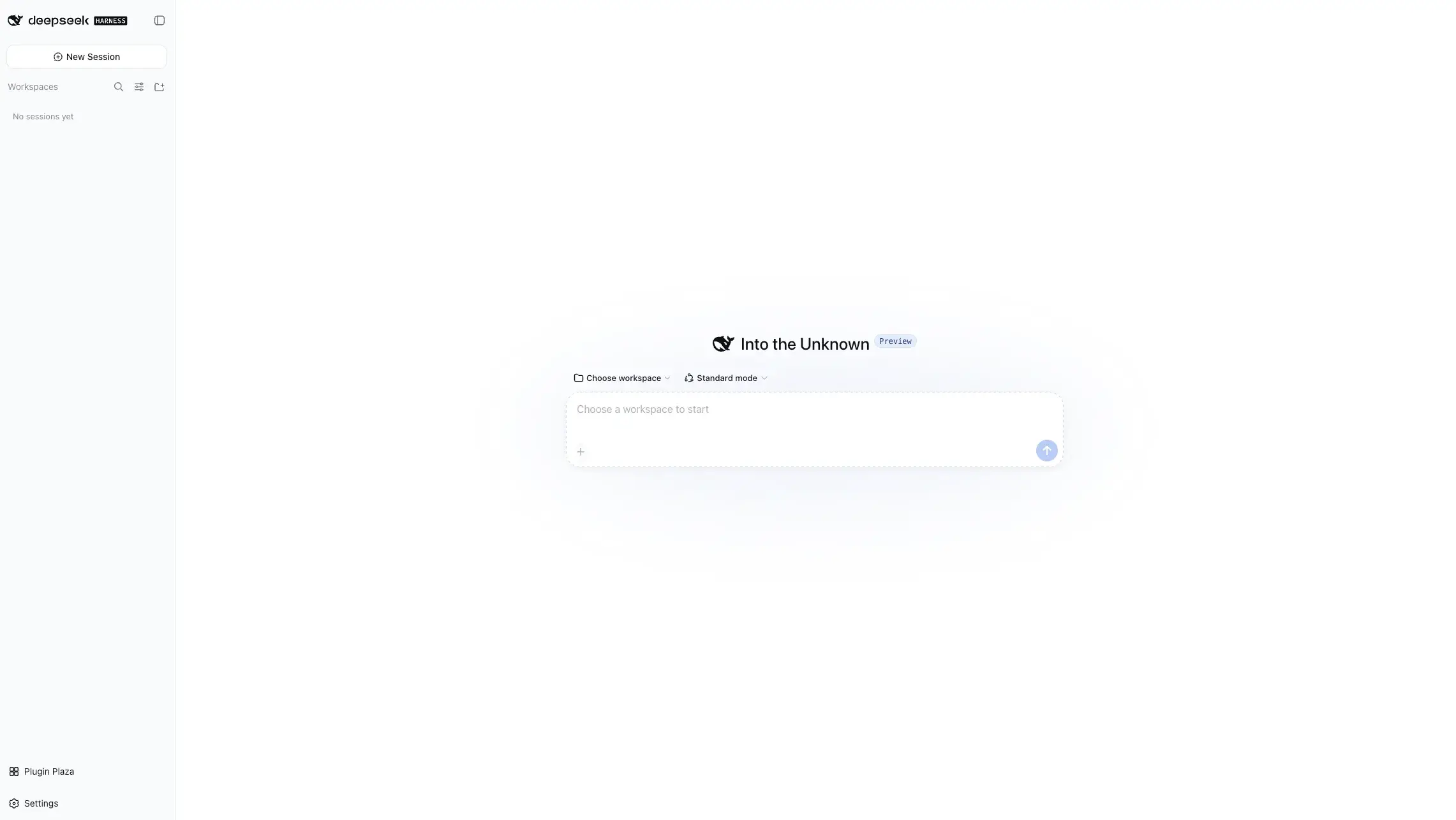
When the service status is running, select Access WebUI from the DeepSeek Harness card.

LightVela provides a dedicated access domain and built-in identity authentication for the DeepSeek Harness WebUI, ensuring that your WebUI is accessible only to you. Once authenticated, you can open the WebUI for your current Agent instance and start with a simple test using a provider you have already configured. If you need to test the existing Hermes Agent separately, use Chat.
Understand Plugins
DeepSeek Harness uses a plugin-first architecture. A plugin supplies a capability or integration to a DSH profile, such as a skill catalog, a messaging connector, or another runtime component. You may visit Plugin Plaza by clicking Plugin Plaza in the bottom left of your DSH page.
Installing and using a plugin
From Plugin Plaza, you can explore additional capabilities for your DeepSeek Harness environment, such as browser tools, memory, automation, UI enhancements, and external integrations.
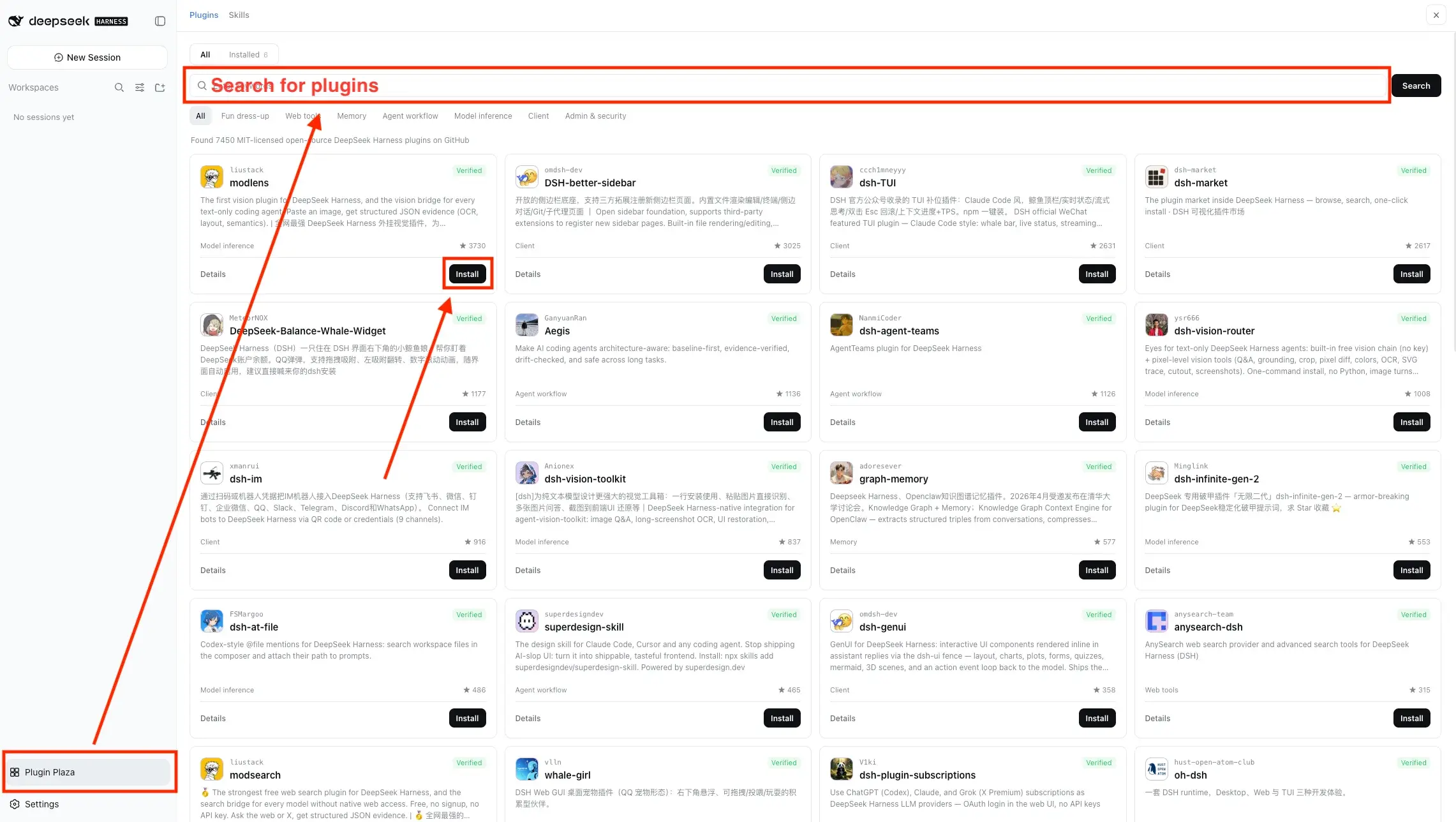
Open a plugin to review what it adds, then install the ones you want to use. After installing a plugin, it can be used directly in the workspace without explicitly mentioning it. For LightVela-managed Hermes skills, see Configure Skills.
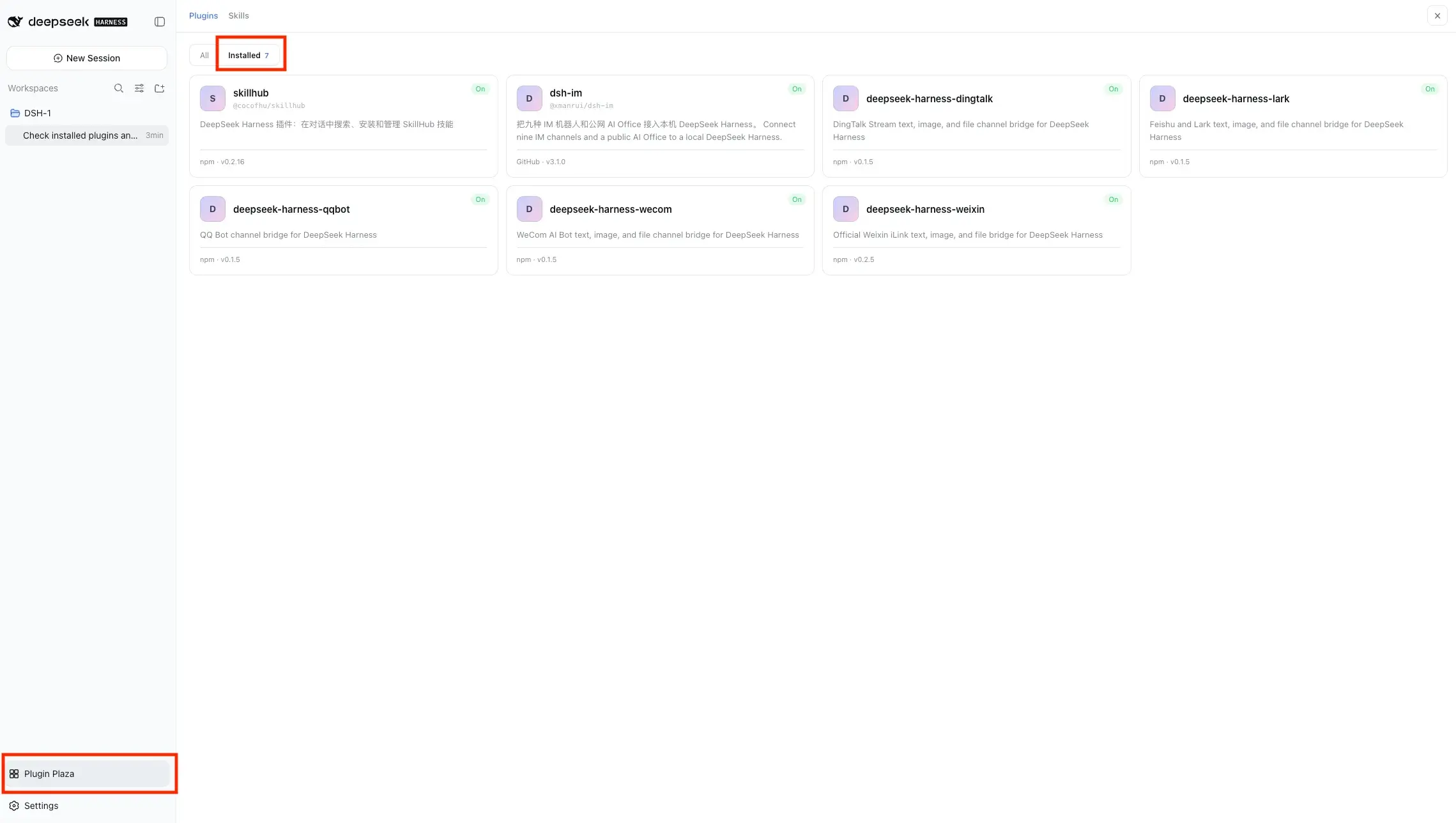
Browsing installed plugins
You can view the list of plugins in the DSH WebUI > Plugin Plaza > Installed.
Use a Workspace
A Workspace is the project directory that DeepSeek Harness works with during your sessions. From the WebUI, click on the Add Workspace icon to open the workspace directory.

Once selected, you can create a new folder or choose an existing folder from your cloud-hosted DSH environment and set it as the workspace for your project. The agent can then use the files in that workspace to understand your project, edit files, run commands, and carry out tasks within that cloud workspace.
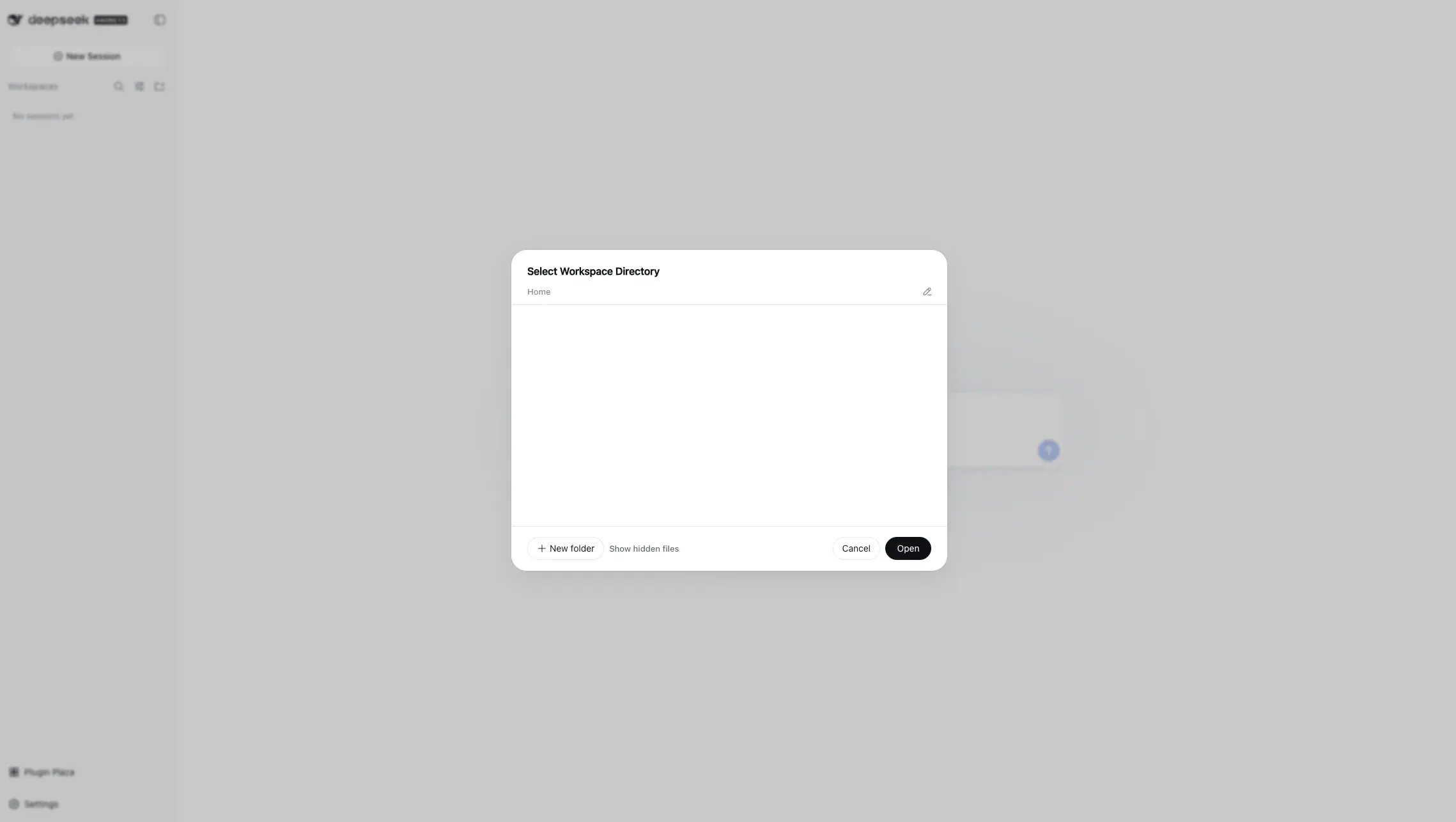
Workspaces also help keep projects and their sessions organized. Sessions created for a workspace are associated with that directory, so you can return to the same project and continue working with its related session history. Operations that require additional permission are still subject to the active DSH permission policy and may ask for your approval in the WebUI. For LightVela file management outside DSH, see Cloud Storage.
Restart DeepSeek Harness
Use Restart when DSH is installed but needs to reload after a configuration change or recover from an unhealthy state. The restart action applies only to the DeepSeek Harness service. Hermes Agent continues to run independently.

Common Problems
| Symptom | Likely cause | What to do |
|---|---|---|
| Installation does not complete | A managed installation task did not finish successfully | Review the on-page error, wait briefly, then retry from the DeepSeek Harness page. |
| The WebUI does not open | The service is not ready, or the current session does not have instance access | Confirm that DSH shows as running, then reopen the WebUI from the Labs page while signed in. |
| A model cannot answer requests | No provider is configured, the key is invalid, or the provider account is unavailable | Check the configured-provider list, update the API key if necessary, and run a simple request again. |
| A saved API key is not visible | This is expected behavior | API keys are write-only. Leave the field empty to keep the saved key, or enter a new key to replace it. |
| A channel is not connected | The plugin exists, but its account configuration is incomplete | Configure and authorize the channel inside the DSH WebUI. |
| DSH appears unhealthy after a change | The service may need to reload | Use Restart, wait for the running state, then validate the WebUI and provider again. |
Current Boundaries
DeepSeek Harness in LightVela is designed as a managed Labs capability. It provides installation, status, restart, approved provider credentials, and a controlled WebUI entry point.
The current Labs page does not support arbitrary package installation, custom plugin uploads, raw network-port access, custom provider endpoints, custom provider protocols, or advanced model-parameter editing. These boundaries keep the managed instance predictable while the feature is still in Beta.
Use DeepSeek Harness when you want to explore its plugin-based agent environment, SkillHub integration, and supported channel components without changing your existing Hermes Agent setup.
FAQ
Does DeepSeek Harness replace Hermes Agent?
No. It runs as a separate service alongside Hermes. Your existing Hermes memory, skills, channels, and configuration stay unchanged.
Why can’t I see my saved API key?
API keys are write-only. Leave the field empty to keep the existing key, or enter a new key to replace it.
Can I add any provider, model, or custom Base URL?
The LightVela Labs page currently supports only the providers shown in its selector. For additional model configuration, including custom models or Base URLs, you can manage them directly from the DeepSeek Harness WebUI.
Are DeepSeek Harness skills the same as Hermes skills?
No. DeepSeek Harness and Hermes Agent are separate environments. Installing DeepSeek Harness does not automatically copy Hermes skills into DSH, and DSH plugin or skill configuration does not change your Hermes Agent setup.
Why is DeepSeek Harness marked Beta?
It is an early-access Labs feature. Updates to DSH or its plugins may introduce compatibility changes, so validate your workflow after updates.
Last updated 2026-08-28